Accounts
In short
Accounts is the person icon at the bottom of the left column. It holds one card per address, with a switch for each of its services: mail, calendars and contacts, Google's. Passwords go to your system's keyring and never travel between your devices; Google is signed in on Google's own page; Bitwarden can give an account its password. The Encryption tab holds your OpenPGP keys, kept on this device or on a security key such as a YubiKey.
Who may reach you, and when, is in Settings ▸ What reaches you. Sites (secure mailboxes, chats) are not accounts: they are made and changed on the Sites page.
Protected by default
- Every password goes to your system's keyring, never into a file. Passwords never travel between your devices: each device asks once.
- Sioul talks to your mail, calendar and contacts servers over encrypted connections only: there is no setting that turns this off.
- Google: you sign in on Google's own page, in your usual browser, with whatever Google asks there (your password, your security key, a passkey). Sioul never sees your Google password, and removing the account gives the access back to Google.
- Bitwarden can give an account its password: Sioul reads your vault itself and never writes to it.
- Your OpenPGP keys stay on this device, or on your security key; those you write to receive your public key with your messages, so that they can answer encrypted.
- On a security key, your keys never leave it. Its PIN is kept in memory a quarter of an hour without use on a computer, typed for each use on a phone, and never written anywhere.
- Looking up someone's key tells a server whose key you look for: Sioul does it only when you ask.
Your accounts
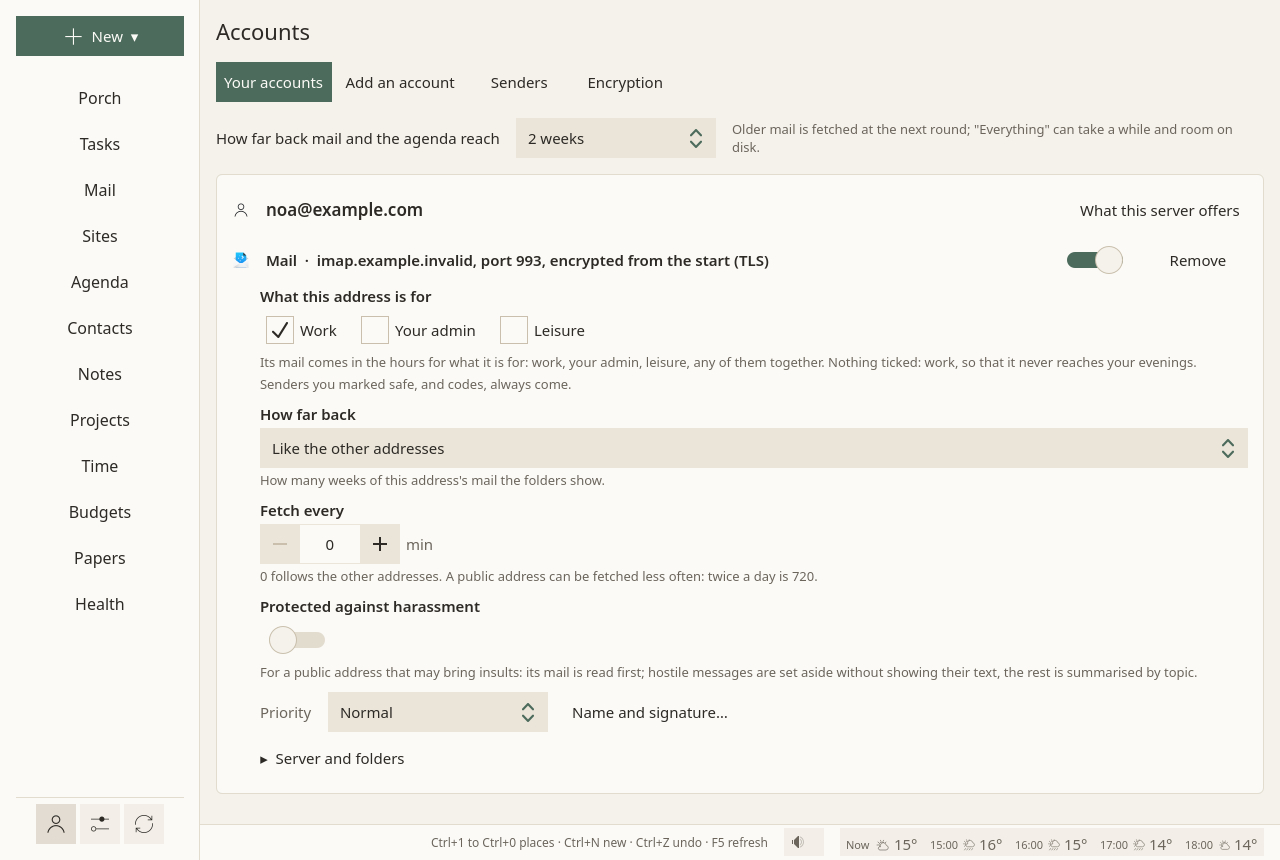
At the top, How far back mail and the agenda reach: from one week to one year, or everything. Older mail is fetched at the next round; "Everything" can take a while, and room on disk.
Then one card per address, with each of its services: Mail; Calendars, tasks and contacts; Google: calendars, contacts and tasks. Each has:
- a switch: off, the service keeps its settings and is neither synced nor shown;
- its server, and what its last fetch said, in a sentence;
- Remove.
What this server offers, at the top of the card, asks the server what else it has: calendars and contacts beside the mail, and for a Nextcloud, its version and its apps. What Sioul can use is added in one click.
A mail address
On its card, Settings for this address, folded until you open it:
- What this address is for: work, your admin, leisure, any of them together. Its mail comes in the hours for what it is for. Nothing ticked counts as work, so that it never reaches your evenings. See Hours.
- How far back: how many weeks of this address's mail its folders show, or like the other addresses.
- Fetch every: how often its folders other than the inbox are fetched; 0 follows the other addresses. A public address can be fetched twice a day (720 minutes).
- Protected against harassment, and once it is on, Let the AI read it first. See the Porch.
Always in view below it:
- Priority: More important, Normal or Less important. See the Porch.
- Name and signature…: your name, as recipients see it, and your signature, in Markdown.
Then Server and folders, folded: the server, and where its mail is kept on this device.
Below the cards, The AI shield holds the key for Anthropic's service, used only by addresses that let the AI read them first. It is kept in your system's keyring, never in a file; Forget the key removes it.
Removing one
Remove asks first. A mail account's password leaves the keyring; its mail stays on your disk and on the server. For Google, the access is given back to Google: the mail's and the calendars' apart, so that removing one leaves the other its access. For Microsoft, its sign-in is forgotten on this device, and Remove also asks whether to delete the mail Sioul keeps on this device for that account: yes, unless you untick it. Microsoft offers apps no way to give an access back: the line Sioul then shows names Microsoft's page where you withdraw it.
An account from your other device
Sharing between your devices brings your accounts, never their passwords. Such an account says it has no password here yet, with Password… on its card: type it, or choose From Bitwarden…. The logins whose user name is this address are listed, the server's own first; choose one, or type a site to narrow them (Sites). The password is tried with the server, then kept in this device's keyring. Password… comes back if the server ever refuses the one kept.
From this page, your Bitwarden vault opens with its master password and a second step other than a security key: an app's code, an e-mail's, a YubiKey's code, a recovery code. To open it with your security key, open it from the Sites page first (Fill the login, or ⋮ ▸ Choose a login…): it then stays open until Sioul closes, here too. On a phone, a security key cannot open the vault yet: use another second step of your Bitwarden account.
Google's mail
Gmail or Google Workspace mail signed in with Google says when Google ends the access (your Google password changed, your own Google app deleted, a Google project left in testing). On its card, Sign in again opens Google's page again, in your browser; App password… gives it an app password instead. Sioul never asks for your Google account's password. See First steps.
Microsoft's mail
Outlook.com, Hotmail, Live, MSN and Microsoft 365 mail signed in with Microsoft says when Microsoft ends the access (your password changed, ninety days unused, your organisation's rules), or when the mailbox stays closed to mail programs, with what to do. On its card, Sign in again opens Microsoft's page again, in your browser. An address added before with a password, at Microsoft's server, shows Sign in with Microsoft instead of Password…: Microsoft takes no password any more, app passwords included, and signing in forgets the one kept. Sioul never asks for your Microsoft password. Its card says Signs in: with Microsoft, and whether as a personal account or as a work or school one. See First steps.
Add an account
Three forms, one after the other:
- Add a mail account: your address, Find the server, your password, Connect and add. For Gmail and Google Workspace, Use an app password or Sign in with Google instead of a password; for Outlook.com, Hotmail, Live, MSN and Microsoft 365, Sign in with Microsoft.
- Add contacts and calendars: from a CalDAV and CardDAV server, such as Nextcloud, Fastmail, iCloud or your host.
- Google calendars, contacts and tasks: Sign in with Google, on Google's own page.
On a phone, From this phone's accounts…, above them, opens Android's own list of the accounts the phone knows. A Google address fills the Google form and the mail form, with Google's two ways; any other fills the mail form, whose server Sioul then looks for, and the one for contacts and calendars. Android lends no password: Sioul asks for it once.
Step by step: First steps. Passwords go to your system's keyring, nowhere else, and Sioul talks to your servers over encrypted connections only.
Outlook.com, Hotmail, Live, MSN and Microsoft 365 addresses sign in on Microsoft's own page, in your browser: Microsoft takes no password from other mail programs. A work or school address may need its organisation's approval, once (First steps; Works with).
Who may reach you
Who may reach you, and when, by mail, by phone and through other apps' messages, and who is on which list (safe, neutral, restricted, blocked, with addresses, numbers, patterns such as *@example.org, the people placed on a list and your contacts' categories): Settings ▸ What reaches you ▸ By person (What reaches you, and when). For one person, their sheet, from their card or a message: How … reaches you (A person's sheet). What each address is for stays on its card, above: mail to an address for another time waits for that time.
Encryption
With a key of your own, anyone, an office included, can write to you so that only you can read it, in your own mailbox rather than on their portal (why).
Your OpenPGP keys, to sign and encrypt your messages (Mail):
- Make a key for an address: a new key, valid three years; its passphrase is made at random and kept in your keyring, so nothing is asked at each message.
- Import a key…: a key exported from GnuPG, with its passphrase, asked once.
- Save the public key: into your downloads, to give to others.
- Save the revocation certificate, for a key made here: a copy into your downloads, to keep somewhere safe, apart from this device. It is what declares the key no longer to be used, should it ever be lost or stolen; anyone who has it can do so. Sioul keeps it beside the key, readable by you alone (Mail, OpenPGP), and cannot revoke a key yet.
- Keys of others: those that came with their messages, or from a file, or found by Look for their keys in the writing window. Each serves only the address it came for, or every address of a file you import. A key Sioul kept before 19 October 2026 that names more than one address, in any of its user IDs, serves none until it comes again: its owner's next message, Look for their keys, or the file imported again. A key its owner revoked serves none either.
Your own keys stay on this device. They are not shared with your other devices: copy them by hand if you need them there. A security key's public part is the exception: it travels (below).
Security key
Your OpenPGP keys can stay on a security key, such as a YubiKey or a Nitrokey: it signs and opens your mail itself, after its PIN, and its private keys never leave it. Sioul keeps only their public part. This works on a computer, plugged in, and on a phone, held against its back (NFC) or plugged into its USB-C port. On a phone it is built and tested against a stand-in card, not yet tried with a real key.
Your other devices learn that public part from the computer that read the key, sealed with the rest of what they share, never a private key nor the PIN. A phone then encrypts what you send to you as well, so that you can read your sent mail on each of your devices, and hands your key to those you write to. Read once on the phone (Use a security key, the key held against its back or plugged in), it signs there too; until then Sign stays off there, with why. A phone with neither NFC nor a USB-C port that takes a key says "Encrypted to your security key: open it on a computer for now" for a message waiting for the key. Another computer of yours that learned the key so encrypts to you and hands your key out as well, but signs with it only once you plug it in and read it there: until then it says "Read on another computer of yours", and Sign stays off. Under your keys it never offers a second key for that address, but Use a security key, to read it there.
- Plug the key in, then choose Use a security key. Sioul reads it without its PIN: its name and serial number, and what it signs and decrypts with.
- Sioul needs the public part of these keys, which the key does not hold. Look for it asks the address written on the key, your domain's key directory, then keys.openpgp.org; this tells those servers that someone looks for your key. Import from GnuPG takes it from GnuPG on this computer, when it has it. Or Import a file…; under By hand, the GnuPG command that writes it into a file, ready to copy.
- Sioul keeps it only when it is the key's own: the same keys, the same public parts. Your security key then signs, alone, for the addresses it names among yours (a key made or imported here for the same address then only opens older mail), and opens what is encrypted to it.
When you send a signed message or open an encrypted one, Sioul asks for the key where you are: plug it in, type its PIN, and touch it when Sioul says so. Keep your finger on the key for a second or two: a brief tap is often not taken, its light says little, and it waits about fifteen seconds. If the key goes away while it signs, nothing is sent and the message stays in Drafts (Mail). If the key has one PIN try left (the others spent elsewhere), Sioul sends nothing at first and says so: type the PIN again only if you are sure of it, since a wrong one would lock the key.
On a phone, Sioul asks the PIN first, then the key: hold it flat against the back of the phone, or plug it into its USB-C port, and keep it there until Sioul says it is done. Held, the tap is the touch, whatever the key's touch setting; plugged in, touch it when Sioul says so, as on a computer. If the key moves away or is unplugged before it finished, Sioul says so, and nothing was sent. NFC switched off offers Open NFC settings; a key plugged in is taken all the same. Android asks once, each time the key is plugged in, whether Sioul may use it: refused, Sioul says to unplug it, plug it in again and choose Allow. If another app holds the key (Yubico Authenticator, OpenKeychain), Sioul says so. Sioul reads keys only while it asks for one, and only the key's smart card part: other apps and the key's one-time codes (Yubico OTP) work as before. A code the key types when touched, while the PIN's field waits, is never given to the key as its PIN. The PIN is never kept on the phone: you type it for each use, the screen hidden from captures meanwhile. If no key comes within a minute, Sioul forgets the PIN typed and asks it again.
Each key shows what it signs for, whether it asks for a touch, where its public part came from, and when it expires. Sioul says a month ahead that it will expire; once it has expired, mail cannot be signed with it until it is renewed, while older mail still opens. Renew for two years renews it with GnuPG on this computer, when GnuPG knows the key: GnuPG asks for the key's PIN in a window of its own, then Sioul says when to touch the key, the finger held a second or two, as GnuPG renews the key and then its subkeys; Sioul then keeps the renewed public part. If the key waited for a touch in vain, Sioul says so, with Try again. Where GnuPG cannot (a Flatpak, a phone, a computer without GnuPG), the two commands that renew it are under By hand, ready to copy. Look for a newer version brings the renewed public part from the servers, Import from GnuPG from GnuPG, or Import a file… from a new export. Send it to keys.openpgp.org puts your public key there, after one sentence that says what goes public: anyone can then find it by its fingerprint, and keys.openpgp.org mails each of its addresses a link, which makes that address findable once opened; Sioul sends it only when you press Send it. Forget the PIN now forgets the PIN Sioul holds. Stop using this security key puts it aside on this device; your other computers that read it keep using it until you stop it there too. On a computer, reading the key again takes it back. A phone reads it again the same way, held against it or plugged in. A phone that cannot reach a key does not offer it for a key read on a computer, since it could not take it back: stop it on a computer that read it, and it leaves the phone too.
Every command Sioul shows, here and elsewhere (to start the smart card service, to install an antivirus or the scans' reader), sits in a field you can select, with Copy beside it.
If another program holds the key (GnuPG, most often), Sioul says so and offers Let GnuPG release it (For technical readers); after its own GnuPG steps, Sioul lets the key go itself. To let GnuPG and Sioul share the key for good, add the line pcsc-shared to scdaemon.conf in GnuPG's folder (~/.gnupg).
When a part of the key has expired, Sioul says which and since when ("Its encryption subkey (B81A…BF8C) expired on 8 April 2025: nobody can encrypt to you with it."), and offers Renew for two years, which renews the primary key and every subkey, the expired ones too, then says each part's new date.
Sioul only uses the key: it never asks for its Admin PIN, never changes or unblocks a PIN, never loads or makes keys on it. What was tried so far: Works with.
Going further
- A Google key of your own: Google gives Gmail's mail access only to apps it has reviewed. Until Sioul's is, Use a Google key of my own takes the client ID and secret of a Google app you make once in Google Cloud (about fifteen minutes, the steps shown). A copy of Sioul built without a Google key of its own asks for yours for calendars too; the copies released so far are built without one. This "key" is an app's name and secret, not a security key (First steps).
- An app password for Gmail works too, without Google's sign-in.
- The AI shield's key, for addresses that let the AI read them first, is kept in the keyring like a password; Forget the key removes it (the Porch).
- Sharing the security key with GnuPG: add the line
pcsc-sharedto~/.gnupg/scdaemon.conf, and both use the key in turn.
Compared with other apps
Your passwords and your keys, kept by your system and your security key. Sioul keeps account passwords in your system's keyring, where Thunderbird keeps its own store. It lets Bitwarden give an account its password, which no other mail app here describes. It uses OpenPGP keys straight from a security key, without GnuPG, where Thunderbird needs GnuPG and a hidden setting and calls it experimental. Others do more elsewhere: Sioul has no S/MIME, needs a Google app of your own, or an app password, for Gmail's mail, and has not yet tried its Microsoft sign-in with a real Microsoft account; its OpenPGP security key is not yet available on phones, nor tried with a real key on Windows or macOS.
As of October 2026, from each app's own documentation.
✓ documented; partly, with a note; ✗ not found in the app's own documentation (for Sioul: not built); ? not confirmed; — not applicable. Sioul's column was checked against its code.
| Sioul | Thunderbird | Gmail | Outlook | Apple Mail | Evolution | |
|---|---|---|---|---|---|---|
| Google signed in on Google's own page | partly¹ | ✓ | — | ✓ | ? | ✓ |
| Outlook.com and Microsoft 365 addresses | partly² | ✓ | ✓³ | ✓ | ? | ? |
| A password manager gives an account its password | ✓⁴ | ✗ | ✗ | ✗ | ? | ✗ |
| One service of an account switched off, its settings kept | ✓ | partly⁵ | — | ? | ✓ | ✓ |
- Google's page opens in your browser. Gmail's mail needs a Google app of your own (a free Google Cloud project, about fifteen minutes, once) or an app password; so do calendars, in a copy of Sioul built without its own key.
- Microsoft's page opens in your browser. Not yet tried with a real Microsoft account. In a copy of Sioul built without its own Microsoft application, an application of your own, registered once (the steps are in the form). A work or school address may need its organisation's approval, once (Works with).
- In the Gmail app on a phone.
- Bitwarden, read by Sioul itself. Bitwarden itself describes filling only in browsers and on phones.
- Calendars only.
| Sioul | Thunderbird | Gmail | Outlook | Apple Mail | Evolution | |
|---|---|---|---|---|---|---|
| Passwords kept in your system's keyring | ✓ | ✗¹ | ? | ? | partly² | ✓³ |
| Your security key when you sign in to Google | ✓⁴ | partly⁵ | ✓ | ? | ? | ? |
| OpenPGP: making keys, finding others' keys | ✓ | ✓⁶ | ✗ | ✗ | ✗ | partly⁷ |
| OpenPGP keys kept on a security key | ✓⁸ | partly⁹ | ✗ | ✗ | ✗ | ? |
| S/MIME certificates | ✗ | ✓ | partly¹⁰ | partly¹¹ | ✓¹² | ✓ |
| Free software | ✓ GPL-3.0+ | ✓ MPL-2.0 | ✗ | ✗ | ✗ | ✓ LGPL-2.1+ |
- Its own password store, protected by a Primary Password if you set one.
- Kept by iCloud Keychain, as Apple says for accounts kept in step between your devices.
- On Linux.
- Google's page opens in your browser, which asks for the key.
- Older U2F keys work in its sign-in window; keys that ask for a PIN, and passkeys, are open issues.
- Autocrypt in part, which Thunderbird calls "limited compatibility".
- Through GnuPG, which makes the keys; Autocrypt and the Web Key Directory since 2022–2023.
- On a computer, through the system's smart card service, tried with a YubiKey 5 on 8 October 2026; on a phone, held against it (NFC) or plugged in (USB-C), tested against a stand-in card only (Works with).
- Only with GnuPG installed and a hidden setting turned on; GnuPG then signs and decrypts; called experimental.
- Google Workspace editions only, turned on by an administrator.
- Described for work or school accounts.
- On a Mac.
Sources
- Thunderbird Support: Thunderbird and Gmail, https://support.mozilla.org/en-US/kb/thunderbird-and-gmail, read 8 October 2026 (through its latest copy on web.archive.org).
- Thunderbird Support: Microsoft's OAuth sign-in, https://support.mozilla.org/en-US/kb/microsoft-oauth-authentication-and-thunderbird-202, read 8 October 2026 (through web.archive.org).
- Thunderbird Support: the password manager, https://support.mozilla.org/en-US/kb/password-manager-remember-delete-change-tb, read 8 October 2026 (through web.archive.org).
- Thunderbird Support: the Primary Password, https://support.mozilla.org/en-US/kb/protect-your-thunderbird-passwords-primary-password, read 8 October 2026 (through web.archive.org).
- Thunderbird: bug 1562324, passwords in the system's keystore (open), https://bugzilla.mozilla.org/show_bug.cgi?id=1562324, read 8 October 2026.
- Thunderbird: bug 1444101, security keys in the sign-in window (fixed in 2018), https://bugzilla.mozilla.org/show_bug.cgi?id=1444101, read 8 October 2026.
- Thunderbird: bug 1868343, the PIN of a FIDO2 key in the sign-in window (open), https://bugzilla.mozilla.org/show_bug.cgi?id=1868343, read 8 October 2026.
- Thunderbird: bug 1864917, passkeys (open), https://bugzilla.mozilla.org/show_bug.cgi?id=1864917, read 8 October 2026.
- Thunderbird Support: OpenPGP, how-to and questions, https://support.mozilla.org/en-US/kb/openpgp-thunderbird-howto-and-faq, read 8 October 2026 (through web.archive.org).
- Mozilla wiki: OpenPGP smart cards in Thunderbird (last edited 23 July 2021), https://wiki.mozilla.org/Thunderbird:OpenPGP:Smartcards, read 8 October 2026.
- Thunderbird: the calendar's strings, https://searchfox.org/comm-central/source/calendar/locales/en-US/calendar/calendar.ftl, read 8 October 2026.
- Thunderbird: its licence, https://searchfox.org/comm-central/source/LICENSE, read 8 October 2026.
- Thunderbird Support: automatic account configuration, https://support.mozilla.org/en-US/kb/automatic-account-configuration, read 8 October 2026 (through web.archive.org).
- Bitwarden Help: getting started with the desktop app, https://bitwarden.com/help/getting-started-desktop/, read 8 October 2026.
- Bitwarden Help: what the desktop app supports, https://bitwarden.com/help/desktop-app-feature-support/, read 8 October 2026.
- Bitwarden Help: filling on Android, https://bitwarden.com/help/auto-fill-android/, read 8 October 2026.
- Gmail Help: Gmail in other mail apps, https://support.google.com/mail/answer/6078445, read 8 October 2026.
- Gmail Help: adding other accounts in the Gmail app, https://support.google.com/mail/answer/21289, read 8 October 2026.
- Google Account Help: app passwords, https://support.google.com/accounts/answer/185833, read 8 October 2026.
- Google Account Help: security keys for 2-Step Verification, https://support.google.com/accounts/answer/6103523, read 8 October 2026.
- Google Account Help: passkeys, https://support.google.com/accounts/answer/13548313, read 8 October 2026.
- Google Workspace Admin: hosted S/MIME, https://knowledge.workspace.google.com/admin/gmail/advanced/turn-on-hosted-s-mime-for-message-encryption, read 8 October 2026.
- Google Workspace Admin: client-side encryption, https://knowledge.workspace.google.com/admin/security/about-client-side-encryption, read 8 October 2026.
- Google Workspace Admin: hardware key encryption for Gmail, https://knowledge.workspace.google.com/admin/security/gmail-only-set-up-and-manage-hardware-key-encryption, read 8 October 2026.
- Outlook: adding a Gmail account to Outlook for Windows, https://support.microsoft.com/en-us/outlook/getstarted/add-a-gmail-account-to-outlook-for-windows, read 8 October 2026.
- Outlook: accounts synced through the Microsoft cloud, https://support.microsoft.com/en-us/Outlook/getstarted/sync-your-account-in-outlook-to-the-microsoft-cloud, read 8 October 2026.
- Microsoft Purview: e-mail encryption, https://learn.microsoft.com/en-us/purview/email-encryption, read 8 October 2026.
- Microsoft Support: encrypting e-mail messages, https://support.microsoft.com/en-us/office/encrypt-email-messages-373339cb-bf1a-4509-b296-802a39d801dc, read 8 October 2026.
- Outlook on the web: S/MIME, https://support.microsoft.com/en-us/office/encrypt-messages-by-using-s-mime-in-outlook-on-the-web-878c79fc-7088-4b39-966f-14512658f480, read 8 October 2026.
- Microsoft account: Windows Hello and security keys (now redirected to "Configure Windows Hello"), https://support.microsoft.com/en-us/account-billing/sign-in-to-your-microsoft-account-with-windows-hello-or-a-security-key-800a8c01-6b61-49f5-0660-c2159bea4d84, read 8 October 2026.
- Microsoft Learn: an overview of new Outlook for Windows, https://learn.microsoft.com/en-us/microsoft-365-apps/outlook/overview-new-outlook-windows, read 8 October 2026.
- Mail for Mac: adding and managing accounts, https://support.apple.com/guide/mail/add-and-manage-email-accounts-mail35803/mac, read 8 October 2026.
- iPhone User Guide: mail, contacts and calendar accounts, https://support.apple.com/guide/iphone/add-mail-contacts-and-calendar-accounts-ipha0d932e96/ios, read 8 October 2026.
- Keychain Access: what it is, https://support.apple.com/guide/keychain-access/what-is-keychain-access-kyca1083/mac, read 8 October 2026.
- Mail for Mac: personal certificates, https://support.apple.com/guide/mail/use-personal-certificates-mlhlp1179/mac, read 8 October 2026.
- iPhone User Guide: adding and removing mail accounts, https://support.apple.com/guide/iphone/add-and-remove-email-accounts-iph44d1ae58a/ios, read 8 October 2026.
- Evolution Help: a Gmail account, https://help.gnome.org/evolution/mail-access-gmail-imap-account.html, read 8 October 2026.
- Evolution: its Google sign-in's code, https://gitlab.gnome.org/GNOME/evolution-data-server/-/raw/master/src/libedataserver/e-oauth2-service-google.c, read 8 October 2026.
- Evolution: its secret store's code, https://gitlab.gnome.org/GNOME/evolution-data-server/-/raw/master/src/libedataserver/e-secret-store.c, read 8 October 2026.
- Evolution Help: the first run, https://help.gnome.org/evolution/intro-first-run.html, read 8 October 2026.
- Evolution Help: encryption, https://help.gnome.org/evolution/mail-encryption.html, read 8 October 2026.
- Evolution Help: setting up GnuPG, https://help.gnome.org/evolution/mail-encryption-gpg-set-up.html, read 8 October 2026.
- Evolution: its NEWS file, https://gitlab.gnome.org/GNOME/evolution/-/raw/master/NEWS, read 8 October 2026.
- Evolution Help: S/MIME certificates, https://help.gnome.org/evolution/mail-encryption-s-mime-manage.html, read 8 October 2026.
- Evolution Help: the kinds of accounts, https://help.gnome.org/evolution/intro-account-types.html, read 8 October 2026.
- Evolution: its code and licence, https://gitlab.gnome.org/GNOME/evolution, read 8 October 2026.
For technical readers
- Connections: mail over TLS from the first byte (preferred, RFC 8314) or STARTTLS, with no unencrypted setting; a failed STARTTLS ends the connection instead of going on in clear. Certificates are checked against the system's (Mozilla's list when the system has none), with rustls. CalDAV and CardDAV over HTTPS only.
- Finding the server:
autoconfig.<domain>, then<domain>/.well-known/autoconfig, then Thunderbird's list of providers (told the domain, never the address), thenimap.<domain>andmail.<domain>, for you to check; HTTPS only, since a settings file fetched in clear could send your password elsewhere. Google Workspace domains are recognised by their MX records. - Google: OAuth 2.0 for native apps (RFC 8252): your browser opens on Google's page, the answer comes back to a loopback address on a random port, and PKCE (S256, RFC 7636) with a random
stateproves it is the same program. Mail (IMAP and SMTP, SASL XOAUTH2) has its own grant, apart from calendars, contacts and tasks, so that either can be removed alone. The refresh token is kept in the keyring, the access token in memory only; removing an account revokes its token at Google. - The keyring: the Secret Service on Linux (KWallet, GNOME Keyring), the Keychain on macOS, the Credential Manager on Windows, Android's KeyStore on a phone. Each entry is filed under
sioul, as "login on server", easy to find, check or remove there. - OpenPGP: RFC 9580, with Sequoia-PGP and its pure-Rust cryptography. A key made here is Ed25519 for signing and Curve25519 for encryption, valid three years, its secret parts encrypted with a random passphrase kept in the keyring. Autocrypt Level 1: your mail carries your key; a key in a sender's header is kept only when it names that sender, public parts only. Others' keys are looked up only when you ask: their domain's Web Key Directory, then keys.openpgp.org, over HTTPS only. No S/MIME.
- The security key: OpenPGP card specification 3.4, through the system's smart card service, PC/SC (pcscd on Linux, which most systems start when a program asks; the Smart Card service on Windows; CryptoTokenKit on macOS). The key is opened for one operation, then reset, so that its PIN does not stay given for another program; readers are connected in shared mode. The PIN is kept in memory, encrypted, for fifteen minutes without use, never written. A signature the key makes is checked against its public part before the message goes. Library logging is capped, so that no PIN or session key can reach a log.
- GnuPG: its smart card daemon keeps the key for itself after using it, unless
scdaemon.confsayspcsc-shared. Let GnuPG release it runsgpgconf --kill scdaemon, on that click only, and so does Sioul at the end of its own GnuPG renewal, cleaning up after its own run; gpg starts it again when it needs the key, and asks its PIN again then. Sioul never changes GnuPG's settings. - Bitwarden from this page: the vault opens with its master password and a second step that this dialog can ask for: an authenticator app's code, an e-mail code, a YubiKey's one-time code, a recovery code. A security key, as a second step or alone, is asked only by the Sites page's dialog, on a computer; the vault then stays open for every page until Sioul closes. How the vault is read: Sites, for technical readers.