Notes
In short
Your notes are a folder of Markdown files that stays yours. It can be your Obsidian vault, or the folder Nextcloud Notes keeps in your Nextcloud: Sioul reads it where it is, imports nothing, and you can go on writing in it with any other program. A note can be tied to a task, a message, an event or a person, and a line with an empty box becomes a task in one click. Pictures, PDFs and audio memos sit beside your notes and open in place. Your notes travel with the sync you already use, or sealed, with Sioul's own sharing.
Protected by default
- Your notes stay plain files in your own folder, on your device. Sioul has no server of its own, and sends your notes nowhere you did not send them.
- Opening a note fetches nothing from the internet. A picture from the web shows as a link to it, so nobody learns that you read the note. Nothing written in a note can run: HTML shows as the text it is, apart from simple marks such as bold and italics.
- A link in a note opens a web page, a mail address, a phone number or a file of this computer. A program, a script or an installer is never started from a note: its folder opens instead. A link to a shared network folder is not followed.
- When Sioul's sharing carries your notes, each one is sealed on your device before it leaves it. The server of the shared folder sees how big each sealed file is, never its name nor what it says.
- When another device's change replaces a note here, the note as it was is kept on this device, to be put back: Settings ▸ Your folder and sharing ▸ Show earlier versions (Putting back an older version).
The same folder as Obsidian and Nextcloud Notes
Choose your Obsidian vault, or the Notes folder that Nextcloud Notes keeps in your Nextcloud, as Sioul's notes folder. Both programs go on working beside Sioul, on the same files: nothing is imported, nothing is converted.
- What Obsidian writes reads as Obsidian reads it:
[[links]]between notes, pictures shown with![[picture.png]],#tags, the properties at the top of a note (its title, tags and other names), boxes to tick, and the notes that link back. A note renamed in Sioul takes the other notes' links along. A note moved to the trash goes into the vault's.trashfolder, as Obsidian's own trash does. - What Nextcloud Notes writes reads as the Markdown it is: its categories are folders, and its notes,
.txtor.md, keep their own name and extension. New notes made in Sioul are.md, which Nextcloud Notes shows too, on the web and in its phone apps. - What Sioul adds stays plain Markdown: a note tied to a task, a message or an event holds an ordinary link, or a line at its top, which other programs show as a link or leave alone.
- Never its own: Sioul writes only the notes you write or make from it. It never reads Obsidian's settings folder, the trash, nor any hidden folder.
Some of what Obsidian draws, Sioul shows as the text it is: callouts, highlights, footnotes, formulas and diagrams. A note embedded in another (![[another note]]) shows as a link to it; pictures show in place.
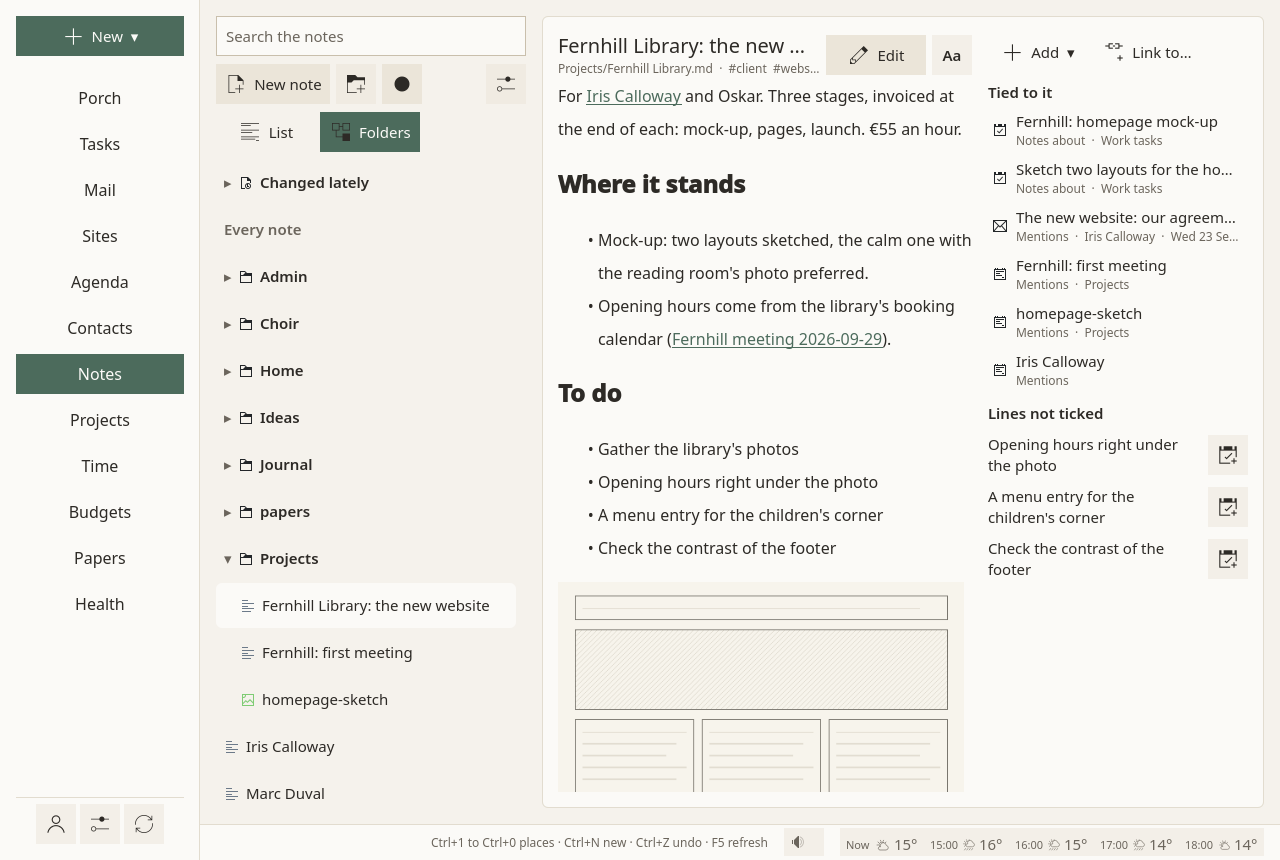
Your notes folder
Chosen in Settings ▸ Your folder and sharing ▸ The notes folder. Beside your notes, the same folder keeps your projects, budgets, papers and scanned letters, so that they all travel together when the folder is synced to your other devices. Where no sync carries it, Sioul's sharing can carry them, if you switch them on there (Sharing).
Finding a note
Search comes first: Search the notes finds a note by its title, its folder or its tags; it does not search the words inside the notes. Below it come the notes changed lately, then every note, as one List or as Folders, folded until opened. Sioul remembers which one you chose. No filing is asked of you.
Reading and writing
A note opens to be read. Its links are followed with a click, wherever they lead: another note, a task, a message, an event, a contact, a web page.
- Edit switches to writing, in Markdown; Save (or Ctrl+S) keeps it.
[[Another note]]links to a note by its name, wherever it is in the folder. Markdown links,#tagsand the properties at the top of a note work too.- Each note shows what links to it, and what it is tied to: tasks, messages, events, people, projects.
- Aa sets the font, its size and the space between lines, for reading on this device.
- Open with… opens the note in another program.
A note changed on another device, come through the sharing, shows at once, as the Health, Papers and Time pages do; while you are typing in it, what you typed stays as it is, and a line under its title says that a newer version came. If the note changed elsewhere while you were writing (on another device, by a sync app, in another program), your version is never saved over it: it is kept beside it, as "Plan (conflict 2026-10-05 21.50)", and stays open; the status line says so. The other version keeps the name. On a phone, the open note takes the whole page, and Back keeps the note, saved, and closes it.
A line such as - [ ] Ask for the certificate, not ticked, is one click from becoming a task: Make it a task. The task stays tied to its note.
New notes
New note, or New ▾ ▸ A note, asks for its title. Every new note goes into one folder of your notes, set in the Notes page's ⚙: New notes go into (notes unless you change it). So do the notes you make from elsewhere:
- from a message: titled with its subject, starting with who wrote it and its first lines quoted, the message tied to it;
- from an event: dated, its guests listed, tied both ways, then Send to the guests;
- from a task, tied to it.
To make a note somewhere else, right-click its folder: New note here…. The same menu has New folder inside…, Rename the folder… and Take out this empty folder.
Pictures, PDFs and sounds
They are notes too, listed beside the Markdown files, and opened in place: a picture fitted to the page, a PDF's pages, a sound with play, pause and where it is. They can be tied to tasks and projects like any note.
![[scan.png]] shows the picture inside a note.
Record an audio memo records into a memos folder, inside the folder where new notes go, and opens the memo as a note. The microphone is open only while it records.
Renaming and deleting
A right click on a note:
- Rename…: the notes that link to it, and the tasks tied to it, follow the new name. A folder renamed takes its notes along, and their links follow too.
- Move to the trash: the note goes into the folder's
.trash, with Undo.
On several devices
Your notes travel with their folder's own sync: Nextcloud, Dropbox, Syncthing. Where no sync carries the folder, a phone's for one, Sioul's sharing carries them, sealed, file by file, once you switch Notes on in it. Sioul does not carry a folder that a sync app already carries: two carriers would undo each other's changes. See Sharing between your devices.
On a phone, Sioul keeps a notes folder of its own: switch Notes on in the sharing, on the phone and on a computer, and give Sioul Android's access to all your files (Notes and papers).
A linked note that has not arrived yet shows faded, with "Not on this device yet: it may still be syncing".
Going further
- Ties written in the note: when you tie a note to something, Sioul writes its address at the top of the note, between two
---lines, underlinks:(ortask:,event:,mail:,contact:). You can write them there yourself, or remove them; the addresses are under For technical readers. - Links with a heading or other words:
[[Plan#Budget]]goes to a heading of the note, and[[Plan|the plan]]shows other words for the link, as in Obsidian. - Tags with a slash:
#admin/lettersis read as one tag, as Obsidian writes its nested tags; searching "admin" finds it. - Earlier versions: before another device's change replaces or removes a note here, the note as it was is kept on this device. Most often it is kept as a pointer to its copy in the sharing folder, which keeps a replaced note two weeks: the pointer goes after 12 days, however few versions there are. A note whose copy has left the folder is copied here instead, as other files are: its last 20 copies, and every copy of the last 30 days. A note deleted on another device is kept as a copy too, moved here, which costs no room: its copy in the sharing folder then leaves it as soon as each of your devices has read that it was deleted. Edits you make on this device do not make versions; your sync app or your server may keep its own (Nextcloud does).
- Sounds to work by: sounds you put in a
soundsfolder of your notes are offered by the sounds button while you work (Tasks).
Compared with other apps
A folder that other programs read too. Sioul's notes are there to sit beside your tasks, your mail and your days. Among these apps, only Sioul and Obsidian open an Obsidian vault where it is. Sioul ties a note to your tasks, mail and events, both ways, and makes a task of a line with a box; OneNote does part of this with Outlook, on Windows, and Joplin makes a note of a mail forwarded to its paid service. Its sealed sharing uses XChaCha20-Poly1305 and Argon2id, as Standard Notes does, through any sync app and with no account. Others do more elsewhere: Sioul does not search the words inside your notes, has no drawing, handwriting or text read in pictures, cannot share a note with other people, and keeps earlier versions only when another device's change replaces a note.
As of October 2026, from each app's own documentation.
✓ documented; partly, with a note; ✗ not found in the app's own documentation (for Sioul: not built); ? not confirmed; — not applicable. Sioul's column was checked against its code.
| Sioul | Obsidian | Joplin | Nextcloud Notes | Standard Notes | OneNote | |
|---|---|---|---|---|---|---|
| Your notes are plain files, in a folder you choose | ✓ | ✓ | ✗ | ✓ | ✗ | ✗ |
| Opens an Obsidian vault where it is, links and tags included | ✓ | ✓ | ✗¹ | ✗² | ✗ | ✗ |
| Links between notes, and the notes that link back | ✓ | ✓ | partly³ | ✗ | ✓ | partly⁴ |
| A note tied to a task, a message or an event | ✓ | ✗⁵ | partly⁶ | ✗ | ✗ | partly⁷ |
| A line with a box made into a task | ✓ | ✗ | ✗ | ✗ | ✗ | ✓⁷ |
| Pictures, PDFs, and audio recorded in the app | ✓ | ✓ | ✓ | partly⁸ | partly⁹ | ✓ |
| Finds a note by the words inside it | ✗¹⁰ | ✓ | ✓ | ? | ? | ✓ |
| Drawing, handwriting, text read in pictures | ✗ | ✗ | ✓ | ✗ | ✗ | ✓ |
| Sharing notes with other people | ✗ | partly¹¹ | partly¹² | partly¹³ | partly¹⁴ | ✓ |
- Joplin imports a folder of Markdown files into its own database; it does not open the folder where it is.
- Nextcloud Notes opens the
.mdfiles, without[[links]], embedded pictures or other names. - Links by a note's number; the notes that link back only through plugins made by others.
- Links to pages and sections; what links back is not described.
- Not among Obsidian's own features; plugins made by others can add it.
- A mail forwarded to Joplin Cloud becomes a note, on its paid plans; a note can be a to-do with an alarm.
- With Outlook, in OneNote for Windows: a meeting's details copied into a page, and words made an Outlook task, ticked off in either.
- Pictures and files; no audio recording.
- Files with the Professional plan only; no audio recording.
- Sioul finds a note by its title, its folder and its tags.
- A vault shared through Obsidian Sync, paid by each member; no writing in one note at the same moment.
- A notebook shared through Joplin Cloud's paid plans.
- By sharing the Notes folder in Nextcloud's Files.
- A read-only link through Listed, which closes on 31 December 2026.
| Sioul | Obsidian | Joplin | Nextcloud Notes | Standard Notes | OneNote | |
|---|---|---|---|---|---|---|
| Works with the sync you already use | ✓¹ | ✓ | partly² | partly³ | ✗⁴ | ✗⁵ |
| Encrypted end to end between your devices | ✓⁶ | ✓⁷ | ✓⁸ | ✗ | ✓⁹ | partly¹⁰ |
| Both versions kept when a note changes on two devices | ✓ | ✓¹¹ | ✓ | partly¹² | ✓ | ? |
| Earlier versions kept, to put back | partly¹³ | ✓¹⁴ | ✓¹⁵ | ✓¹⁶ | ✓¹⁷ | ? |
| Free software | ✓ GPL-3.0+ | ✗¹⁸ | ✓ AGPL-3.0+ | ✓ AGPL-3.0+ | ✓ AGPL-3.0 | ✗ |
- Your notes folder travels with your own sync app (Nextcloud, Dropbox, Syncthing…), or sealed with Sioul's sharing, through the folder of any sync app.
- Nextcloud, WebDAV, Dropbox, OneDrive, S3 or a folder, always in Joplin's own format, which other programs do not read as notes.
- Nextcloud only, on your own server or a provider's.
- Its own server, free, or one you run yourself.
- OneDrive or SharePoint.
- When Sioul's sharing carries your notes: XChaCha20-Poly1305, its key made from your passphrase by Argon2id. A folder your own sync app carries is protected as that app protects it.
- With Obsidian Sync, paid: AES-256-GCM, its key made by scrypt.
- When you turn it on: AES-256-GCM, its key made by PBKDF2-HMAC-SHA512.
- Always on, free: XChaCha20-Poly1305, its key made by Argon2id.
- A password on a section, in the desktop app; the cipher is not stated.
- With Obsidian Sync: merged, or kept as a conflicted copy.
- Its web app shows both versions and asks which to keep; its Android app keeps the last one written.
- On each device, when another device's change replaces a note: kept 12 days as a pointer to the sharing folder's copy, or, that copy gone, copied (the last 20, and all those of 30 days); a note deleted on another device, copied. Your own edits make none.
- On each device every 5 minutes, kept 7 days, free (File recovery); on the server with Obsidian Sync, paid.
- Every 10 minutes, kept 90 days, on every device, free.
- On the server, as Nextcloud keeps every file's versions.
- On the device; on the server with the paid plans.
- Free to use for any purpose, but its code is not free software. Nextcloud Notes' Android app is under GPL-3.0-or-later.
Apple Notes, on Apple's devices and iCloud's website, keeps notes in its own store and syncs them through iCloud. It links notes to one another (what links back is not described), records audio with a written transcript, lets several people write in a note at once, and is encrypted end to end when Advanced Data Protection is on. Its guide describes no earlier versions; a deleted note stays 30 days in Recently Deleted.
Sources
- Obsidian Help: how Obsidian stores data, https://help.obsidian.md/data-storage, read 8 October 2026.
- Obsidian Help: internal links, https://help.obsidian.md/links, read 8 October 2026.
- Obsidian Help: embedding files, https://help.obsidian.md/embeds, read 8 October 2026.
- Obsidian Help: aliases, https://help.obsidian.md/aliases, read 8 October 2026.
- Obsidian Help: properties, https://help.obsidian.md/properties, read 8 October 2026.
- Obsidian Help: plugins, https://help.obsidian.md/plugins, read 8 October 2026.
- Obsidian Help: backlinks, https://help.obsidian.md/plugins/backlinks, read 8 October 2026.
- Obsidian Help: the formatting syntax, https://help.obsidian.md/syntax, read 8 October 2026.
- Obsidian Help: the audio recorder, https://help.obsidian.md/plugins/audio-recorder, read 8 October 2026.
- Obsidian Help: search, https://help.obsidian.md/plugins/search, read 8 October 2026.
- Obsidian Help: collaborating on a shared vault, https://help.obsidian.md/sync/collaborate, read 8 October 2026.
- Obsidian Help: syncing your notes across devices, https://help.obsidian.md/sync-notes, read 8 October 2026.
- Obsidian Help: Sync's security and privacy, https://help.obsidian.md/sync/security, read 8 October 2026.
- Obsidian Help: troubleshooting Sync (conflicts), https://help.obsidian.md/sync/troubleshoot, read 8 October 2026.
- Obsidian Help: file recovery, https://help.obsidian.md/plugins/file-recovery, read 8 October 2026.
- Obsidian Help: Sync's version history, https://help.obsidian.md/sync/version-history, read 8 October 2026.
- Obsidian Help: settings ("Deleted files"), https://obsidian.md/help/settings, read 8 October 2026.
- Obsidian: licence, https://obsidian.md/license, read 8 October 2026.
- Obsidian: prices, https://obsidian.md/pricing, read 8 October 2026.
- Obsidian Help: installing, https://help.obsidian.md/install, read 8 October 2026.
- Joplin: questions and answers, https://joplinapp.org/help/faq, read 8 October 2026.
- Joplin: importing and exporting, https://joplinapp.org/help/apps/import_export, read 8 October 2026.
- Joplin: linking to a note, https://joplinapp.org/help/apps/link_to_note, read 8 October 2026.
- Joplin plugins: Easy Backlinks, https://joplinapp.org/plugins/plugin/com.tuibyte.EasyBacklinks/, read 8 October 2026.
- Joplin: mail to note, https://joplinapp.org/help/apps/email_to_note, read 8 October 2026.
- Joplin: to-dos, https://joplinapp.org/help/apps/to-dos, read 8 October 2026.
- Joplin: attachments, https://joplinapp.org/help/apps/attachments, read 8 October 2026.
- Joplin: the Android app's changelog, https://joplinapp.org/help/about/changelog/android, read 8 October 2026.
- Joplin: search, https://joplinapp.org/help/apps/search, read 8 October 2026.
- Joplin: the drawing tool, https://joplinapp.org/help/apps/drawing_tool, read 8 October 2026.
- Joplin: text recognition (OCR), https://joplinapp.org/help/apps/ocr, read 8 October 2026.
- Joplin: sharing a notebook, https://joplinapp.org/help/apps/share_notebook, read 8 October 2026.
- Joplin: plans, https://joplinapp.org/plans/, read 8 October 2026.
- Joplin: synchronisation, https://joplinapp.org/help/apps/sync/, read 8 October 2026.
- Joplin: end-to-end encryption, https://joplinapp.org/help/apps/sync/e2ee, read 8 October 2026.
- Joplin: the encryption's specification, https://joplinapp.org/help/dev/spec/e2ee/native_encryption, read 8 October 2026.
- Joplin: conflicts, https://joplinapp.org/help/apps/conflict, read 8 October 2026.
- Joplin: note history, https://joplinapp.org/help/apps/note_history, read 8 October 2026.
- Joplin: licence, https://github.com/laurent22/joplin/blob/dev/LICENSE, read 8 October 2026.
- Joplin: installing, https://joplinapp.org/help/install, read 8 October 2026.
- Nextcloud Notes: its README, https://github.com/nextcloud/notes, read 8 October 2026.
- Nextcloud Notes: its Markdown editor's code, https://github.com/nextcloud/notes/blob/main/src/components/EditorMarkdownIt.vue, read 8 October 2026.
- Nextcloud Notes: its changelog, https://github.com/nextcloud/notes/blob/main/CHANGELOG.md, read 8 October 2026.
- Nextcloud Notes for Android: questions and answers, https://github.com/nextcloud/notes-android/blob/main/FAQ.md, read 8 October 2026.
- Nextcloud Notes: its API, https://github.com/nextcloud/notes/blob/main/docs/api/v1.md, read 8 October 2026.
- Nextcloud user manual: end-to-end encryption, https://docs.nextcloud.com/server/latest/user_manual/en/files/using_e2ee.html, read 8 October 2026.
- Nextcloud user manual: encrypting your files on the server, https://docs.nextcloud.com/server/latest/user_manual/en/files/encrypting_files.html, read 8 October 2026.
- Nextcloud Notes: its plain editor's code (conflicts), https://github.com/nextcloud/notes/blob/main/src/components/NotePlain.vue, read 8 October 2026.
- Nextcloud user manual: version control, https://docs.nextcloud.com/server/latest/user_manual/en/files/version_control.html, read 8 October 2026.
- Nextcloud Notes: its app information (licence), https://github.com/nextcloud/notes/blob/main/appinfo/info.xml, read 8 October 2026.
- Nextcloud Notes for Android: its README, https://github.com/nextcloud/notes-android/blob/main/README.md, read 8 October 2026.
- Standard Notes: backups, https://standardnotes.com/help/14/how-do-i-create-and-import-backups-of-my-standard-notes-data, read 8 October 2026.
- Standard Notes: help, https://standardnotes.com/help, read 8 October 2026.
- Standard Notes: linking to another note, https://standardnotes.com/help/84/can-i-create-a-link-to-another-note, read 8 October 2026.
- Standard Notes: features, https://standardnotes.com/features, read 8 October 2026.
- Standard Notes: encrypted files, https://standardnotes.com/help/36/how-do-i-attach-encrypted-files-to-my-notes, read 8 October 2026.
- Standard Notes: searching inside a note, https://standardnotes.com/help/70/how-do-i-search-inside-a-note, read 8 October 2026.
- Standard Notes: collaborating on a note, https://standardnotes.com/help/50/can-i-collaborate-with-others-on-a-note, read 8 October 2026.
- Standard Notes: sharing a private note, https://standardnotes.com/help/17/how-do-i-share-a-private-note, read 8 October 2026.
- Standard Notes: running your own server, https://standardnotes.com/help/47/can-i-self-host-standard-notes, read 8 October 2026.
- Standard Notes: the encryption's specification, https://github.com/standardnotes/app/blob/main/packages/snjs/specification.md, read 8 October 2026.
- Standard Notes: duplicates and conflicts, https://standardnotes.com/help/33/how-do-i-clear-duplicates, read 8 October 2026.
- Standard Notes: version history, https://standardnotes.com/help/26/how-do-i-enable-note-version-history, read 8 October 2026.
- Standard Notes: plans, https://standardnotes.com/plans, read 8 October 2026.
- Standard Notes: licence, https://github.com/standardnotes/app/blob/main/LICENSE, read 8 October 2026.
- OneNote: basic tasks on Windows, https://support.microsoft.com/en-us/onenote/onenote-help-and-learning/basic-tasks-in-onenote-on-windows, read 8 October 2026.
- OneNote: Outlook meeting details in a page, https://support.microsoft.com/en-us/onenote/onenote-help-and-learning/insert-outlook-meeting-details-into-onenote, read 8 October 2026.
- OneNote: Outlook tasks made in OneNote, https://support.microsoft.com/en-us/onenote/onenote-help-and-learning/create-outlook-tasks-in-onenote, read 8 October 2026.
- OneNote: audio and video notes, https://support.microsoft.com/en-us/onenote/onenote-help-and-learning/record-audio-or-video-notes, read 8 October 2026.
- OneNote: handwritten notes, https://support.microsoft.com/en-us/onenote/onenote-help-and-learning/take-handwritten-notes-in-onenote, read 8 October 2026.
- OneNote: text copied from pictures (OCR), https://support.microsoft.com/en-us/OneNote/onenote-help-and-learning/copy-text-from-pictures-and-file-printouts-using-ocr-in-onenote, read 8 October 2026.
- OneNote: sharing a notebook, https://support.microsoft.com/en-us/OneNote/onenote-help-and-learning/how-to-share-a-onenote-notebook, read 8 October 2026.
- OneNote: syncing a notebook, https://support.microsoft.com/en-us/OneNote/onenote-help-and-learning/sync-a-notebook-in-onenote, read 8 October 2026.
- OneNote: a password on a section, https://support.microsoft.com/en-us/onenote/onenote-help-and-learning/protect-your-notes-with-a-password, read 8 October 2026.
- Apple Notes for Mac: links, https://support.apple.com/guide/notes/add-links-apde615d29c2/mac, read 8 October 2026.
- Apple Notes for Mac: recording and transcribing audio, https://support.apple.com/guide/notes/record-and-transcribe-audio-apdb5106e334/mac, read 8 October 2026.
- Apple: iCloud data security overview, https://support.apple.com/en-us/102651, read 8 October 2026.
- Apple Notes for Mac: deleting a note, https://support.apple.com/guide/notes/delete-a-note-not5585d71a8/mac, read 8 October 2026.
- Apple Notes for Mac: sharing and collaborating, https://support.apple.com/guide/notes/share-notes-and-collaborate-apd4e6e2c9a6/mac, read 8 October 2026.
- Apple Notes for Mac: importing, exporting and printing, https://support.apple.com/guide/notes/import-export-and-print-notes-not201900c07/mac, read 8 October 2026.
For technical readers
- Markdown: CommonMark with tables, strikethrough and task lists (pulldown-cmark). Raw HTML is shown as written, except twelve plain formatting marks without attributes (
<b>,<i>,<u>,<s>,<em>,<strong>,<del>,<sub>,<sup>,<mark>,<kbd>,<br>). A picture is shown only from this computer or the notes folder, rebuilt from its address and size; a remote one becomes a link. The note is drawn by Qt's own rich text, not by a web engine, so no script can run. - Links:
[[name]],[[name#heading]]and[[name|text shown]]are found as Obsidian finds them: a note whose path ends with the name, the same folder first, then the shortest path, then the notes'aliases. Markdown links are relative to the note. - Addresses: a note is
sioul:note/<path>(an IRI, RFC 3987), a messagemid:<Message-ID>(RFC 2392), a task, an event or a contactsioul:task/<UID>,sioul:event/<UID>,sioul:contact/<UID>. Each tie is written in the thing that can hold it: a note's properties (its front matter:title,tags,aliases, and links to tasks, events, mail, contacts and drafts); a task's or an event'sLINKorRELATED-TOlines, which CalDAV carries to your other devices and other programs keep; else a small local file,links.toml. - Links opened:
http,https,mailto,tel, andfile:///on this computer; afile:///link to a program opens its folder. Other schemes (smb:,file://server/, a desktop's own handlers) are refused, and the status line says so. - Files: hidden folders,
.obsidian,.trash,.git,node_modulesandtargetare never read. A note is written beside its place, then renamed into it, so that a crash never leaves half a note; a path that would leave the notes folder is refused. Names that a system refuses, Windows' device names among them (CON,NUL,AUX…), are changed, so that notes travel between systems. A note's text is fingerprinted when it opens; if the file changed by the time you save, your version goes beside it. - Sealed sharing: each note is compressed, then sealed with XChaCha20-Poly1305 in pieces of 1 MiB, each piece bound to its file, its place and whether it is the last, so that pieces cannot be swapped, cut or added. Its name in the folder is an HMAC-SHA-256 of its content's hash, under a key derived by HKDF-SHA-256: the names tell nothing, not even that two folders hold the same file. The key comes from your passphrase (12 characters at least) through Argon2id (version 1.3, 64 MiB, 3 passes, 1 lane) and stays in the system keyring, or Android's KeyStore on a phone. Files over 64 MB stay on their device. A deletion reaches the other devices after ten minutes; many files gone at once are held until you confirm. The folder's server still sees which device wrote (a random identifier), when, and how big each sealed file is. See What it protects, and what it cannot hide.
- Earlier versions: a note or a paper kept as a pointer to its copy in the sharing folder, 12 days, whatever their number; copies (other files, notes whose copy has left the folder, and notes or papers another device deleted, moved there) the last 20 of each file and all those of the last 30 days, at most 1 GiB or a twentieth of the disk, whichever is smaller; kept on this device only and never shared.
- Synced folders recognised: Sioul does not carry a notes folder inside a Nextcloud, ownCloud, Dropbox, Syncthing, OneDrive, pCloud or Seafile folder, since that app already carries it.