First steps
Nothing has to be set up at once. Each step below is useful on its own, and Sioul works with whatever you give it. Open it from your application menu, or with sioul-app in a terminal.
Sioul speaks English and French, as your system does, unless you choose otherwise in Settings ▸ Display ▸ Language.
The window
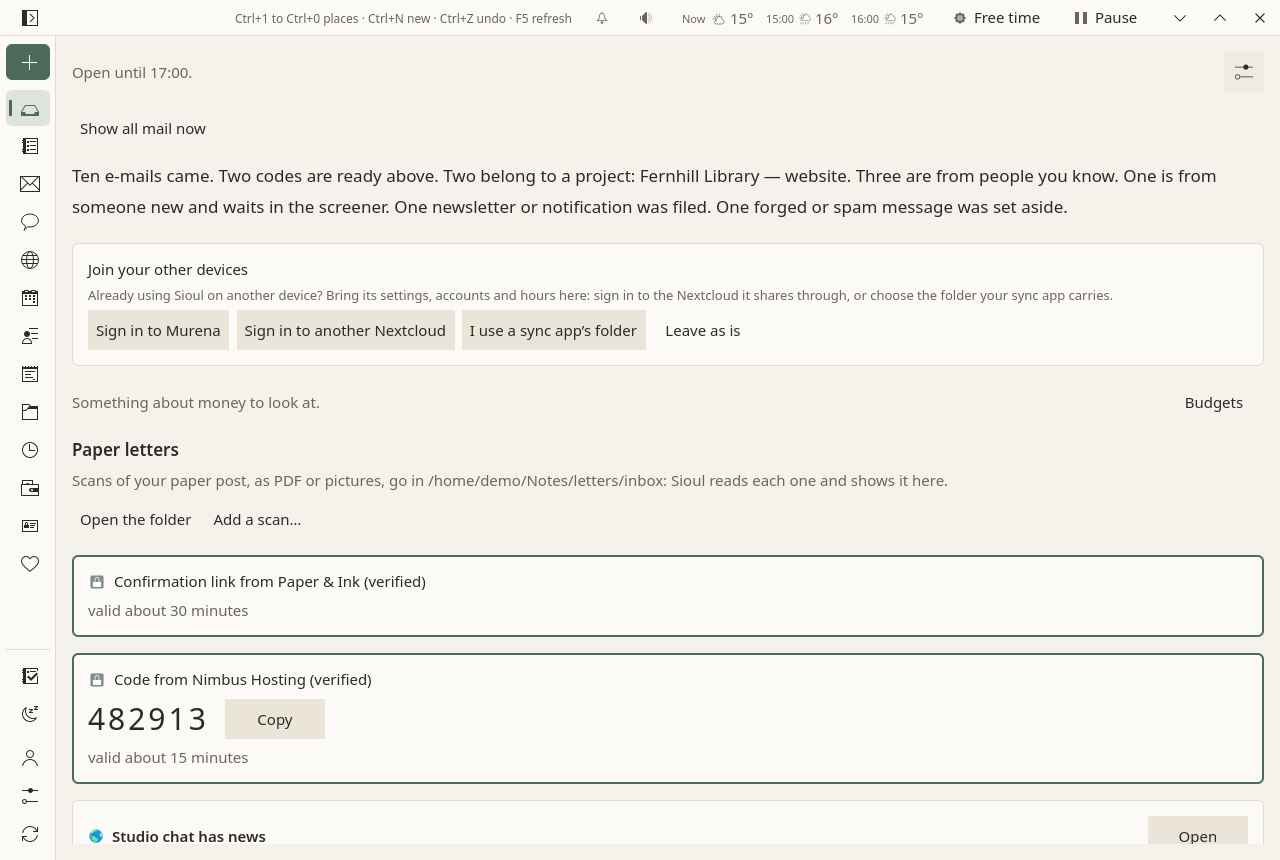
At the top, across the whole window, the status line is its title bar. It says one sentence about what happened last. After anything is moved, deleted or sent, "Undo" waits there for ten seconds. In quiet time, it says when work comes back; once the day's hours are over, it offers to close the work day, and in the evening the day. Further along are the keys, do-not-disturb, the sound button (sounds to focus or rest by), the weather at a place you choose, and at its end Free time and Pause.
- Its left end, over the places, is the button that shows the places' names beside their icons, in a wider column, or keeps their icons only (F9): the same choice as Settings ▸ Display ▸ Show the places' names beside their icons.
- The window's buttons, minimize, maximize or restore, and close, are on the side your system puts them, in its order: KDE Plasma, GNOME and Xfce say where in their settings; on the left on a Mac, on the right on Windows.
- Drag it where nothing else is, the sentence included, to move the window; double-click it to maximize the window or give it back its size. The window's edges resize it.
On the left, a narrow column of icons, from top to bottom:
- New ▾, the +, makes something of any kind: a message, a task, an event, a contact, a note, a project, time spent, a budget movement, a paper, a paper letter's scan (on a computer: The Porch); and Where I stopped… leaves one line on where you were (Tasks).
- The places, one icon each: Porch (an inbox tray), Tasks (a checklist), Mail (an envelope), Sites (a globe and its meridians), Agenda (a calendar), Contacts (a person and lines), Notes (a notepad), Projects (a folder), Time (a clock), Budgets (a wallet), Papers (a card), Health (a heart). The place shown is marked by a soft tint and a short bar.
- Apart at the bottom: Close the work day (a ticked list) and, under it, Close the whole day (a moon), at any hour (the end of the day); then three icons, side by side when the names show: Accounts (a person), Settings (sliders), and Refresh everything, which fetches mail, the agenda, tasks and contacts again at once.
Each icon's name, with its key, shows when the pointer rests on it, when the keyboard reaches it, or at a long press on a touch screen.
On each page, the ⚙ at the end of the first row holds that page's own settings, each with a sentence on what it changes; they are saved at once. How long text reads (the font, its size and the space between lines) is in the ⚙ of Mail and of the Porch, and behind "Aa" in Notes. A right click, the Menu key, or a long press on a touch screen, on anything gives what is not in view.
Keys
Everything works from the keyboard: Tab to move, Enter to choose, Escape to go back. On a computer, the status line names the main keys when nothing else needs its room; never on a phone, held upright or sideways.
| Keys | What they do |
|---|---|
| Ctrl+1 to Ctrl+9, Ctrl+0 | the first ten places, in the order of the list: Porch, Tasks, Mail, Sites, Agenda, Contacts, Notes, Projects, Time, Budgets |
| Ctrl+N | New ▾ |
| Ctrl+Z | Undo, while it is offered |
| F5 | Refresh everything |
| F9 | The places' names beside their icons, or their icons only; in a narrow window, pull the places out or put them away |
| F11 | Full screen, or back |
| Ctrl+Q | Quit Sioul (closing the window hides it in the system tray) |
| Ctrl+Enter | Send, in the writing window |
On a phone
Sioul on a phone: Install. On a phone, or in a window under 720 pixels wide:
- The places slide in from the left, behind ☰, with their names beside their icons; a bar on top names the page.
- The status line is at the bottom of a phone's screen, each of its buttons an icon alone: a long press on one says what it is. When its sentence is cut short, a tap on it shows it whole.
- One pane at a time: a page shows its list, then what you open across the whole screen; Back, on the bar or Android's, comes back.
- Menus open at a long press on a touch screen, where a mouse would right click.
What differs on a phone:
- Notifications come for doses (Health), the time running (Time), events (Agenda) and new mail at its times (The Porch). A code you asked for shows on the Porch; the other reminders do not come there yet.
- Calls can be screened once you let Sioul be Android's "Caller ID & spam app": who may ring, and when, as their row in What reaches you says; the others go to your voicemail (Calls).
- Other apps' notifications can be held until their time, once you give Sioul Android's notification access: messages from people by who wrote them, the rest at the gathered times (Settings ▸ This phone).
- Mail is fetched while Sioul is open: Android stops it in the background.
- Sharing: Sioul is in Android's share sheet, and so is each of your addresses; mail links open in it (Mail).
- Folders: a setting's Choose… opens Sioul's own list of the phone's folders, with Allow access to files when Android has not given Sioul that access yet.
- Sites open in your browser (Sites); PDFs open in another app, with Open with….
- Paper letters are not read, and attachments are not checked by an antivirus: the programs Sioul uses for that on a computer do not exist on a phone.
- Your other devices share with it through a folder your phone's sync app carries, or that Sioul keeps in step with your Nextcloud itself; a new phone joins them through Murena's sign-in, or another Nextcloud's, from the Porch's Join your other devices (below). Passwords never travel: each account asks for its own, once (Accounts).
- Cards on the home screen: Sioul's widgets (a long press on the home screen, Widgets). The full card, "Sioul", begins with today: the date, the weather now and, on the same row, each of the next four hours, the next morning, afternoon, evening and night, then the next seven days, at the place you chose for the weather (tap the weather in Sioul's status line to choose one). Under it, what the Porch has for you, one short line each: a dose due, never as "not taken" ("check before taking it" when another device may know), a code you just asked a site for, the reminders of dates, waits, payments and papers, a call Sioul declined, two events at once. Last, what now is for and, in work or admin time, the next step. Never a count. A tap on a dose, a code or a call opens the Porch; on a reminder, what it is about; on the step, Now. The mail and your events have cards of their own, "Sioul — Mail" and "Sioul — Agenda", in the same list of widgets, to place and order as you like: the latest messages on the Porch (who wrote, in bold while you have not read it, when, the subject, a line of the text; outside the hours chosen for mail, only when the Porch opens), and your coming events, day by day, each in its calendar's colour. With Details on the home screen turned off (Settings), they name no sender, subject, event, code, dose, reminder, call or step; the date and the weather still show.
Join your other devices
Already using Sioul on another device? On a device that does not share yet, the Porch's first card, Join your other devices, brings its settings, accounts and hours here: Sign in to Murena, or Sign in to another Nextcloud, opens your Nextcloud's own sign-in page in your browser; Sioul then finds your sharing folder there and asks for your passphrase, once. I use a sync app's folder leads to the folder your sync app carries. Then the steps below are mostly done: what is left is each mail account's password, listed once the join is done, with, on a phone, what Android has not allowed Sioul yet and a button for each (Sharing). Leave as is puts the card away; Settings ▸ Your folder and sharing offers the same at any time.
Add your mail
- Open Accounts (the person icon), then the Add an account tab.
- Under "Add a mail account", type your email address and choose Find the server.
- Sioul says what it found and where from: your provider's own settings, Thunderbird's list of providers, or a guess, said as such, to check before going on.
- Type your password. It goes to your system's keyring, nowhere else.
- Choose Connect and add. Sioul tests the password before keeping anything, then fetches your recent mail.
Some providers want an app password instead of your usual one when two-step verification is on: you make it in your account's settings at the provider. Gmail and Google Workspace: below.
Outlook.com, Hotmail, Live, MSN and Microsoft 365 take no password at all: you sign in on Microsoft's own page, below.
Fetching changes nothing on your mail server. Sioul writes there only when you act: opening a message marks it read, as any mail program does; archiving, deleting and moving happen ten seconds after you asked, so that "Undo" can stop them.
Then, on the address's card in Your accounts, unfold Settings for this address and tick What this address is for: work, your admin, leisure, or several. Until you say, an address counts as work, so that it never reaches your evenings. See Hours.
Gmail and Google Workspace
Google refuses your account's password in other mail programs. Sioul knows Google's mail by its address (gmail.com, googlemail.com) or by the servers that receive your domain's mail (Google Workspace), and offers two ways instead of a password:
- Use an app password: make an app password for Sioul at myaccount.google.com/apppasswords (it needs 2-Step Verification; Make an app password opens the page in your browser), paste it under App password (from Google), then Connect and add.
- Sign in with Google: Google's own page opens in your browser. For mail, Google lets in only a Google key of your own, not Sioul's: a free project in Google Cloud, made once (How to make your Google key unfolds the steps), the one of your Google calendars if you made it. Google then says the app is not verified: it is yours; choose Advanced, then Go to Sioul, and leave Gmail's access ticked. Publish the project (Audience → Publish app): left in testing, Google ends the access every seven days.
Once your key is kept on this device, Sign in with Google is the way chosen first, and asks for nothing else. On a phone, once Google says Sioul has the access, come back to Sioul: it finishes there. If Android closed Sioul meanwhile, nothing changed: sign in again.
Outlook.com, Hotmail and Microsoft 365
Microsoft takes no password from other mail programs, app passwords included. Sioul knows Microsoft's mail by its address (outlook.com, hotmail.com, live.com, msn.com and their country versions, such as hotmail.fr) or by the servers that receive your domain's mail (Microsoft 365), and signs it in on Microsoft's own page instead:
- After Find the server, choose Sign in with Microsoft. Microsoft's page opens in your browser, your address filled in. Choose your account if Microsoft asks which one, sign in as Microsoft asks (your password, your phone, your security key), and accept what Sioul asks: to read and send your mail, and to stay signed in.
- Sioul waits for Microsoft's answer for five minutes at most, then opens your mailbox with the access given before it keeps anything. If only the mailbox of the account you signed in on Microsoft's page opens, not your address's (an alias, or another of your accounts chosen there), Sioul names both and asks before using it. The access stays in your system's keyring, and nothing goes to Sioul's developer.
What each kind of address needs:
- Outlook.com, Hotmail, Live, MSN: Outlook.com keeps mail programs out until you let them in, once. In Outlook.com's settings, under Mail ▸ Forwarding and IMAP, turn on "Let devices and apps use IMAP", then save; Microsoft's page on it opens Microsoft's own instructions. If Sioul says the mailbox stays closed while the switch is on, confirm the sign-in as yours at account.live.com/activity ("This was me").
- Microsoft 365, for work or school: your organisation may have to approve Sioul once, since by default Microsoft lets employees approve mail access for only a few programs of its choosing. If Microsoft's page says that only an administrator can, unfold What your administrator does, copy it and send it to them: the link that approves Sioul for everyone in your organisation, and the two switches of your mailbox (IMAP, and Authenticated SMTP for sending).
- A Microsoft 365 address Sioul does not recognise (your organisation's mail first goes through another service): when Find the server finds nothing, choose This address is at Microsoft.
- Your own Microsoft application: in a copy of Sioul without one of its own, the form says so and asks for the Application (client) ID of yours. Register one, once, in Microsoft Entra (How to register your application unfolds the steps); it needs no secret. In a copy that carries one, Use an application of my own is there if you prefer yours.
On a phone, come back to Sioul as soon as Microsoft's page says it is done: Microsoft's answer lasts about a minute. If it came too late, Sioul says so; signing in again is quicker the second time.
Sioul does not reach Microsoft's calendars and contacts: Microsoft offers them through its own interface, not CalDAV or CardDAV.
Add your calendars, tasks and contacts
From a CalDAV and CardDAV server: Nextcloud, Fastmail, iCloud, your host.
- In Accounts ▸ Add an account, under "Add contacts and calendars", type your address and password.
- If Sioul cannot find the server from the address, unfold Server address, when it cannot be found and give it.
- Choose Connect and add. Your address books and calendars come; tasks come with the calendars that hold them.
Already added your mail? On its card in Your accounts, What this server offers asks the server: its calendars and contacts, and for a Nextcloud, its version and apps. One click adds them.
Add Google
Google takes no password from other programs: you sign in on Google's own page.
- In Accounts ▸ Add an account, under "Google calendars, contacts and tasks", type your Google address.
- Choose Sign in with Google. Your browser opens on Google's page; Sioul waits for its answer for five minutes at most.
- Sign in, and allow what Sioul asks: your calendars, your contacts and your tasks.
Sioul keeps the access in your system's keyring. Google keeps less than an open server: what it does not keep shows greyed in Sioul, never hidden, with why. What Sioul reads and writes in your Google account, and how to take the access back: Privacy policy.
If Sioul asks for a Google key
A copy of Sioul built without its own Google key asks for yours. How to make your Google key unfolds the steps in Accounts: a free project in Google Cloud, about fifteen minutes, once. You can also choose Use a Google key of my own at any time.
Google's mail is added in the mail form, above: with an app password, or signed in with Google (Gmail and Google Workspace).
Choose your notes folder
Your notes are a folder of Markdown files: an Obsidian vault works as it is. Sioul also keeps your projects, budgets, papers and scanned letters in that folder, so that they travel with it to your other devices.
In Settings ▸ Your folder and sharing, choose The notes folder. Sioul reads it and links to it; it never owns it. See Notes.
Set your hours
In Settings ▸ Hours: your working hours and hours for your own admin; every other time is leisure, and meals and sleep come from the Health page. Without hours, everything comes at any hour, as in other mail programs. Until they are set, the Porch asks once, with Set my hours and Leave as is. See Hours.
Pin the websites you check
The secure mailboxes of your bank, your health insurer, the tax office; a chat; a video call.
On the Sites page, Usual sites ▾ lists about 400 of them by country, or Pin a site finds one by a word ("bank", "ameli"), or takes any address by hand. You log in once; the site keeps you logged in. See Sites.
Keep Sioul open
On a computer, Sioul opens maximized; F11 shows it full screen, and back. Its icon in the system tray shows or hides the window: closing the window hides it there, and Sioul goes on behind it, mail, reminders and medicines included. Quit Sioul is in the icon's menu, or Ctrl+Q; the menu also has Close the work day and Close the whole day. Without a system tray (GNOME without its extension), closing the window quits.
While its window is open, Sioul keeps each inbox open on the server: a code or a sign-in link you asked a site for reaches you within seconds, as one quiet notification, whatever the hour.
Reminders can also come with the window closed: in Settings ▸ Reminders, tick With Sioul's window closed. A small watcher then starts with your session; it fetches no mail.
Next
- The Porch, where new mail waits.
- Tasks, and the one next step.
- Hours, and quiet time.
- Notifications and do-not-disturb: what Sioul tells you when, and what waits.
- Works with: the servers, apps and systems Sioul works with, and how far each was tried.