Sites
In short
Some mail never leaves its website: a bank's secure mailbox, the hospital's, the tax office's, the health insurer's. Chats, video calls and dating sites live in the browser too. The Sites page keeps them pinned and logged in, apart from your usual browser, and holds their notifications until the hours you keep for them. Your security key works inside them, and Bitwarden fills their logins when you ask.
These secure mailboxes exist because ordinary mail was not private enough for a bank's or an office's letters. Their answer was to make you come to them, each with its own login and its own code, while your mailbox gets, at most, a note that something is waiting. Sioul keeps them here, in one place, so that you no longer watch them one by one; and its encrypted mail is there so that such letters can come back to you as mail, sealed for you alone (Why Sioul encrypts mail).
Protected by default
- Your sites live apart from your usual browser, in a browser of Sioul's own: what they keep (logins, cookies, files) stays there.
- A site is pinned only at an
https://address: what you type there is encrypted on its way. - The microphone, the camera and screen sharing stay off for banks, offices and other secure mailboxes until you turn them on; a site that asks while they are off is refused, and the status line says where to turn them on. Your location is never given to any site.
- Each site's icon is asked of the site itself, never of an icon service that would learn which sites you keep.
- Your security key signs in for the site that asks, which Sioul's dialog names; its secrets never leave the key.
- Bitwarden: Sioul reads your vault itself and never writes to it. Your master password and your keys are never kept, and a login is filled only when you ask.
Pinning a site
- Usual sites ▾ opens the sites people usually keep, about 400 of them: for France, Canada (with Québec) and the United States (state by state where it matters), by group: offices, banks, energy, phone and internet; and, whatever your country, chats, video calls, social networks, dating. Each group starts with All of them, which pins the whole group at once; a site already pinned is ticked and left as it is. Elsewhere, pin your offices and your bank by hand.
- Pin a site finds one by a word ("bank", "ameli", "chat"), fills its name, address, type and what it is for in one click, or takes any site by hand: a name and an address that begins with
https://.
You log in once, on the site itself. Sioul keeps you logged in; it never stores the site's password itself.
On a phone, the Sites page lists your sites and opens each in your browser: Sioul keeps no login there and gathers no notification. The sites you pinned on a computer come with the settings when you share between your devices.
The list
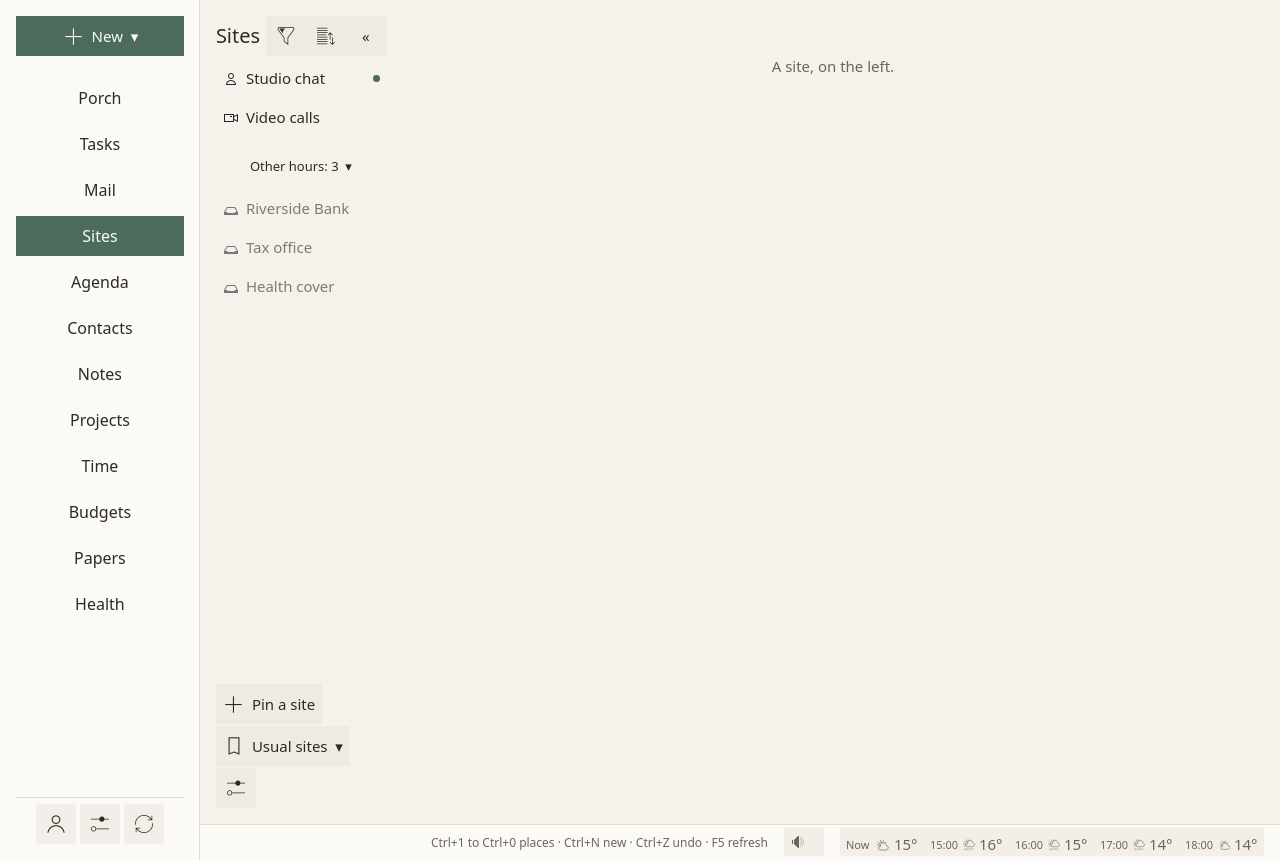
- The sites for these hours come first. The others fold under one line, "Other hours: 3", opened with a click. See Hours.
- Your order: a site's menu ▸ Move up, Move down. The sort button groups them by type instead.
- The funnel filters by what a site is for (work, your admin, leisure), by its type, or by one of your categories; Show every site undoes it.
- Each site's own icon is asked of the site itself, never of an icon service that would learn which sites you keep.
- The list folds to its icons when you want more room for the site.
A site, open
When a site is open, a row above it holds: back, reload, Real time (its notifications at once), the camera button while the site has a call (Calls), Silence its sounds, Fill the login (from Bitwarden, below), and the site's menu, ⋮.
A site's menu
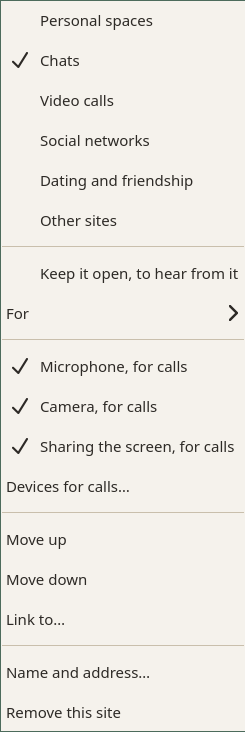
The ⋮ of the site open, or a right click on any site of the list:
- its type: personal spaces (secure mailboxes, client areas), chats, video calls, social networks, dating and friendship, other sites;
- Keep it open, to hear from it: chats are kept open by default;
- For ▸ work, your admin, leisure, or several (unsaid, it follows the site's type);
- Microphone, for calls, Camera, for calls, Sharing the screen, for calls: on for chats, video calls and dating sites, off for the others until you turn them on;
- Devices for calls…: the camera, microphone and speaker that calls use, from your system's list;
- Move up, Move down, Link to… a task, a note, a contact or a project;
- Name and address…: its name, its address, and your own categories ("Bank", "Health");
- Remove this site: it leaves Sioul; nothing changes on the site itself.
Notifications at your pace
Every site's notifications are accepted, then kept by Sioul; the site itself never shows them.
- From the site in front of you: nothing more.
- From a site in Real time (its box, always in view): a desktop notification at once.
- A call ("incoming call") comes at once, unless the site is silenced. A missed call waits like the rest.
- Everything else waits, as "the site has news" on the Porch. Opening the site clears its news.
At set times (09:00, 13:00 and 18:00, unless you choose others in Settings ▸ Reminders), one notification gathers which sites have news, with Open the Porch. Three a day helped most in a field trial (Fitz et al. 2019).
A site whose hours have not come keeps its notifications, real time and calls included, until they do.
A message from a site's domain ("you have a new message in your secure space") gets a button above it: Open the site.
Calls
Chats, video calls and dating sites have the microphone and the camera. A call starts on the camera and the microphone chosen in Devices for calls…, and plays its sound through the speaker chosen, from a site's very first call.
While a site has a call, a camera button appears in the row above it, beside Silence its sounds. It opens the lists of cameras, microphones and speakers. A choice takes effect at once in every call open in Sioul, as soon as the new device has opened, without cutting the call, and it stays for the next calls. Calls in a pop-up window, or inside a frame of another site, change too. During a call, a device you choose in the site's own menu is kept for that call; that menu may still name the old device after a change in Sioul.
The system's own follows your system: on Linux, choosing another default microphone or speaker in your desktop's sound settings moves a call that uses the system's own at once. A call on a device you named, in Sioul or in the site, stays on it.
When a device cannot be opened, because another program holds it or it is unplugged, the line above the site says so, and the call keeps the device it had.
Share in the call lets you choose a whole screen, one window, or nothing. When a site asks for the microphone while it is off, the status line says so, with where to turn it on. The place where you are is never given to any site.
Colours
A screen wider than sRGB, as many photo laptops and some monitors have, makes websites' colours louder than their makers meant: a green comes out more saturated, a red brighter. On a computer, Sioul shows every site in your screen's own colours, read from its colour profile, and can soften loud colours further.
- Colours for this screen, in Settings ▸ Display: on unless you turn it off. On Linux with X11, Sioul converts sites to the profile your desktop publishes for each screen (with colord,
xiccdor KDE's colour service), and follows a window moving to another screen. Under Wayland and on macOS, your desktop adapts colours itself, and Sioul leaves it to it, so that nothing is converted twice. The sentence under the setting says which. - Calmer colours on sites: Off, A little, More. Loud colours are softened, their lightness and hue kept; greys, soft tints and faces barely move. It works on every computer, with or without a profile.
- Both change every open site at once, its pop-up windows too, without reloading anything. Sioul's own window around the sites keeps its colours.
Security keys
When a site asks for your security key (a YubiKey or another FIDO2 key, to sign in to GitHub, Google or Proton), Sioul's own dialog names the site that asks, lets you choose among the key's accounts when it keeps several, asks for its PIN when it has one (or for a new one, when the key asks for it), says when to touch it, and says in plain words why it failed (not registered, PIN blocked, too late), with Try again. Passkeys kept on the key work. Passkeys kept in a phone or in the system do not, on Linux and macOS; on Windows, Windows' own dialog takes the key.
Logins from Bitwarden
Sioul fills logins from your Bitwarden vault, read by Sioul itself: nothing else to install.
- In the Sites page's ⚙: your Bitwarden account's e-mail, and its server when it is not bitwarden.com (bitwarden.eu, or your own, Vaultwarden too).
- On a site's login page, Fill the login.
- The first time in a session, open the vault: with your security key alone (when Bitwarden knows it as a passkey used for encryption), or with your master password, then the second step your account asks for (a security key, an authenticator app's code, a code by e-mail, a YubiKey's code, a recovery code). Duo cannot be used here. The vault then stays open until Sioul closes.
Sioul fills at once the login made for the site in front of you, when it is the only one. When a site has several logins, or none, the list of your logins opens; Choose a login… opens it any time. A login made for another site is filled only when you choose it, and the list says which site it was made for, so that a look-alike site shows. Two fields find logins, each optional, both together when both are filled:
- Site: the site's domain to begin with, its own address first. Change it for a sign-in on another site (accounts.google.com, for a site that signs in with Google), or type words: "ameli" finds ameli.fr and assure.ameli.fr, not camelia.com; a login without a site is found by its name. Never by a user name: "gmail" finds Gmail's logins, not every login with a Gmail address.
- User name: any part of it, alone or with a site.
The login you chose last on a site comes first the next time, its domain in Site when it was made for another one. Tab goes from one field to the other, Enter takes the first login (or the one you moved to with the arrows), Escape closes.
For a mail account's password (Password… ▸ From Bitwarden…, on the Accounts page), User name holds the account's address and Site stays empty: a mail server's address (imap.gmail.com) is seldom the one where your provider's login is kept (accounts.google.com).
On a page asking for a one-time code, Fill the login writes the code your vault's secret gives now.
Your master password and keys are never kept. The logins stay in memory while the vault is open, until Sioul closes. Nothing is ever written to your vault.
Where it is kept
Each site's address and choices are in Sioul's settings. The sites' cookies and files live in one browser profile of Sioul's own, apart from your usual browser. Their notifications wait in Sioul's state folder until you look.
When Sioul closes, it closes each site as a browser closes its tabs: a site that keeps your login in the open page, as Discord does, finds it the next time.
Going further
- What a site is for (⋮ ▸ For: work, your admin, leisure, or several) decides the hours in which it comes forward (Hours). Unsaid, it follows its type: secure mailboxes are your admin; chats, social networks and dating are leisure.
- People you listed: when a chat's notification names someone your contacts know, that person's row in What reaches you may hold it longer, never shorter: a blocked person's chat notifications never come.
- A limit a day on chats, on the Health page: once the minutes you chose are used, the chats are covered and silent for the time you chose.
- Link to… ties a site to a task, a note, a contact or a project; the link opens the site.
- Pop-ups, such as a sign-in window or a call's window, open in a window of their own, with the rights of the site that opened them.
- One profile for every site: each site keeps its own login, but two accounts of the same service (two WhatsApp numbers) cannot be open side by side.
- Your pinned sites travel as one list with your settings: pin sites on one device at a time, since two devices that each pin a site before they exchange keep only the later list.
- Your own list of usual sites: the list is a plain file (
sites.json) that anyone can correct without building Sioul; a copy in~/.local/share/sioul/presets/is used when it is newer than Sioul's own. See the developers' notes. - Limits: signing in with Google inside a site may be refused, since Google blocks sign-ins in browsers it takes for embedded ones; a call cannot go full screen. What was tried, and with which sites: Works with.
Compared with other apps
Notifications for your hours, and the offices ready to pin. Apps that keep web services in one window, and a browser with containers, compared. No other app's documentation describes holding notifications until your hours and giving them together at set times: Ferdium and Rambox mute them on a schedule, Wavebox for a set time. Sioul has the secure spaces of banks, insurers and public offices ready to pin for France, Canada and the United States; it fills Bitwarden logins with nothing to install; its own dialog asks a security key's PIN on Linux, where Electron, which Ferdium and Rambox are built on, turns such a request down; and it keeps your sites in step between your computers without an account at a company. Others do more elsewhere: they open two accounts of one service side by side, take browser extensions and ad blockers, and Sioul's phone only opens your sites in its browser.
As of October 2026, from each app's own documentation.
✓ documented; partly, with a note; ✗ not found in the app's own documentation (for Sioul: not built); ? not confirmed; — not applicable. Sioul's column was checked against its code.
| Sioul | Ferdium | Rambox | Shift | Wavebox | Firefox + containers | |
|---|---|---|---|---|---|---|
| Notifications kept for your hours, then given together at set times | ✓ | partly¹ | partly² | ✗³ | partly⁴ | ? |
| Banks', insurers' and public offices' secure spaces, ready to pin | ✓⁵ | ✗⁶ | ✗⁶ | ? | ? | — |
| A ready-made list of services to pin | ✓⁷ | ✓⁷ | ✓⁷ | ✓⁷ | ✓⁷ | — |
| Microphone, camera and screen sharing allowed site by site | ✓ | partly⁸ | partly⁸ | ✓ | ✓⁹ | ✓ |
| Two accounts of one service, side by side | ✗¹⁰ | ✓ | ✓¹¹ | ✓ | ✓ | ✓ |
| Browser extensions, ad blocking | ✗ | ✗ | ✓¹¹ | ✓ | ✓¹² | ✓ |
| On a phone | partly¹³ | ✗ | ✗ | ✗ | ✗ | partly¹⁴ |
- A do-not-disturb window each day, from one time to another; no gathering at set times.
- Work hours for each workspace, outside which its notifications are muted, and a Focus Mode; no gathering at set times.
- Notifications allowed or blocked app by app.
- A Focus Mode for a set time, by group of apps.
- For France, Canada (with Québec) and the United States; elsewhere, add yours by hand.
- None among its ready-made services; any site can be added by hand.
- Sioul about 400; Ferdium 441 and Rambox 782, counted in their lists; Wavebox over 2,500 and Shift 4,500, as they say.
- Notifications and sound service by service, but no setting for the camera or the microphone service by service (Rambox has them allowed for the whole app, in the system's settings).
- The camera and the microphone, site by site.
- One browser profile holds every site: each keeps its own login, but not two accounts of the same service.
- With the Pro plan.
- Any Chrome extension; no ad blocker of its own.
- Your sites are listed, and each opens in your phone's browser.
- Firefox runs on Android and iOS; its containers do not.
| Sioul | Ferdium | Rambox | Shift | Wavebox | Firefox + containers | |
|---|---|---|---|---|---|---|
| A security key (FIDO2) with its PIN, inside sites | ✓¹ | partly² | partly³ | partly⁴ | ✓⁵ | ✓⁶ |
| Logins filled from Bitwarden | ✓⁷ | ✗⁸ | ✓⁹ | ✓¹⁰ | ✓¹⁰ | ✓¹⁰ |
| Your sites on your other computers, without an account at a company | ✓¹¹ | ✓¹² | ✗¹³ | ✗¹³ | ✗¹³ | ✗¹⁴ |
| Free software | ✓ GPL-3.0+ | ✓ Apache-2.0 | ✗ | ✗ | ✗ | ✓ MPL-2.0 |
- Sioul's own dialog on Linux and macOS, with the key's PIN; on Windows, Windows' own dialog. Expected with GitHub, Google, Proton and Bitwarden (Works with).
- Electron, which Ferdium is built on, turns down a request when the key asks for its PIN. Ferdium added another library for passkeys on Linux in version 7.2.0; an open report says a FIDO2 key does not sign in to Microsoft Teams there.
- Its help says security keys work on Windows, not fully on macOS and some Linux systems.
- For single sign-on, on Windows only; described as not working as a second step.
- "Exactly as in any other browser"; the key's PIN is not mentioned.
- USB FIDO2 keys on macOS and Linux since Firefox 114, with their PIN.
- Read by Sioul itself, nothing to install, never written to; the vault also opens with your security key alone.
- Its maintainers declined it as out of scope.
- Through Bitwarden's extension, with the Pro plan.
- Through Bitwarden's extension.
- Sealed, through a folder that your own sync app carries.
- With Ferdium's server, run by yourself.
- With an account at Rambox, Shift or Wavebox.
- With a Mozilla account.
Other apps. Franz (Windows, macOS, Linux) works as Ferdium and Rambox do: each service in a container of its own, about 75 ready-made services, 1Password filling with its Pro plan, a switch that mutes every service, and no hours for notifications. Station no longer has a product site; its last stable release dates from 1 December 2024. Choosing the camera, the microphone and the speaker for calls, and changing them during a call, which Sioul does, is left out of the tables: the other apps' documentation does not say how they do it.
Sources
- Ferdium: its home page, https://ferdium.org/, read 8 October 2026.
- Ferdium: questions and answers, https://ferdium.org/faq, read 8 October 2026.
- Ferdium: its interface's English strings (version 7.2.3), https://github.com/ferdium/ferdium-app/blob/develop/src/i18n/locales/en-US.json, read 8 October 2026.
- Ferdium: its ready-made services (recipes), https://github.com/ferdium/ferdium-recipes/tree/main/recipes, read 8 October 2026.
- Ferdium: release 7.2.0, https://github.com/ferdium/ferdium-app/releases/tag/v7.2.0, read 8 October 2026.
- Ferdium: issue 2539, a FIDO2 key and Microsoft Teams on Linux, https://github.com/ferdium/ferdium-app/issues/2539, read 8 October 2026.
- Ferdium: issue 1468, Bitwarden, declined as out of scope, https://github.com/ferdium/ferdium-app/issues/1468, read 8 October 2026.
- Ferdium: issue 135, browser extensions, https://github.com/ferdium/ferdium-app/issues/135, read 8 October 2026.
- Ferdium: its server, https://github.com/ferdium/ferdium-server, read 8 October 2026.
- Ferdium: its code and licence, https://github.com/ferdium/ferdium-app, read 8 October 2026.
- Electron: pull request 54355, a WebAuthn request cancelled when the key asks for its PIN (merged 25 September 2026), https://github.com/electron/electron/pull/54355, read 8 October 2026.
- Rambox: features, https://rambox.app/features/, read 8 October 2026.
- Rambox: prices, https://rambox.app/pricing/, read 8 October 2026.
- Rambox: its list of apps, https://rambox.app/apps/, read 8 October 2026.
- Rambox help: profiles and sessions, https://support.rambox.app/support/solutions/articles/42000094794-profiles-session-management, read 8 October 2026.
- Rambox help: workspaces, https://support.rambox.app/support/solutions/articles/42000027659-how-to-create-and-configure-workspaces-, read 8 October 2026.
- Rambox help: Focus Mode, https://support.rambox.app/support/solutions/articles/42000027999-focus-mode, read 8 October 2026.
- Rambox help: passkeys and two-factor authentication, https://support.rambox.app/support/solutions/articles/42000110024-passkeys-and-two-factor-authentication-2fa-doesn-t-work-, read 8 October 2026.
- Rambox help: extensions, https://support.rambox.app/support/solutions/articles/42000092789-extensions-how-to-add-and-configure-them, read 8 October 2026.
- Rambox help: sharing your camera, microphone or screen, https://support.rambox.app/support/solutions/articles/42000093043-issues-sharing-your-camera-microphone-or-screen-, read 8 October 2026.
- Rambox: questions and answers, https://rambox.app/faqs/, read 8 October 2026.
- Rambox help: how Rambox works, https://support.rambox.app/support/solutions/articles/42000081279-how-does-rambox-work-, read 8 October 2026.
- Rambox: its licence agreement, https://rambox.app/eula/, read 8 October 2026.
- Shift help: cookies and partitions, https://support.shift.com/hc/en-us/articles/39174004970004-How-Cookies-and-Partitions-are-Handled-in-Shift, read 8 October 2026.
- Shift help: several accounts, https://support.shift.com/hc/en-us/articles/39236976528916-How-to-Log-Into-Multiple-Accounts-in-Shift, read 8 October 2026.
- Shift: its apps, https://shift.com/apps/, read 8 October 2026.
- Shift help: notifications, https://support.shift.com/hc/en-us/articles/39195849411220-Managing-notifications-in-Shift-Browser, read 8 October 2026.
- Shift help: two-factor authentication and single sign-on, https://support.shift.com/hc/en-us/articles/39170248336020-Using-2FA-and-SSO-in-Shift, read 8 October 2026.
- Shift help: extensions, https://support.shift.com/hc/en-us/articles/28587706143252-How-to-add-extensions-in-Shift, read 8 October 2026.
- Shift help: the Blocker add-on, https://support.shift.com/hc/en-us/articles/45561439081748-All-about-Shift-Browser-s-Blocker-Add-on, read 8 October 2026.
- Shift help: camera, microphone and screen-sharing permissions, https://support.shift.com/hc/en-us/articles/39167776055316-How-to-Fix-Camera-Microphone-and-Screen-Sharing-Permissions, read 8 October 2026.
- Shift help: sync settings, https://support.shift.com/hc/en-us/articles/35017689014676-How-to-manage-your-Sync-settings-in-Shift-Browser, read 8 October 2026.
- Shift help: on a phone or a tablet, https://support.shift.com/hc/en-us/articles/38736611711380-Is-Shift-available-on-mobile-or-tablet, read 8 October 2026.
- Shift: prices, https://shift.com/pricing/, read 8 October 2026.
- Wavebox: features, https://wavebox.io/features, read 8 October 2026.
- Wavebox: prices, https://wavebox.io/pricing, read 8 October 2026.
- Wavebox hub: Focus Mode, https://hub.wavebox.io/focus-mode/, read 8 October 2026.
- Wavebox hub: passkeys, https://hub.wavebox.io/passkeys/, read 8 October 2026.
- Wavebox hub: password managers, https://hub.wavebox.io/password-manager/, read 8 October 2026.
- Wavebox hub: microphone and camera permissions, https://hub.wavebox.io/microphone-camera-permissions/, read 8 October 2026.
- Wavebox hub: profile sync, https://hub.wavebox.io/profile-sync/, read 8 October 2026.
- Wavebox hub: ad blocker, https://hub.wavebox.io/ad-blocker/, read 8 October 2026.
- Wavebox: download, https://wavebox.io/download, read 8 October 2026.
- Wavebox: its earlier repository, without a licence file, https://github.com/wavebox/waveboxapp, read 8 October 2026.
- Firefox Multi-Account Containers: its add-on page, https://addons.mozilla.org/en-US/firefox/addon/multi-account-containers/, read 8 October 2026.
- Firefox Multi-Account Containers: its details through the add-ons API, https://addons.mozilla.org/api/v5/addons/addon/multi-account-containers/, read 8 October 2026.
- Firefox: enterprise policies, permissions, https://github.com/mozilla/policy-templates/blob/master/docs/index.md, read 8 October 2026.
- Firefox 114: release notes (FIDO2 keys over USB), https://www.firefox.com/en-US/firefox/114.0/releasenotes/, read 8 October 2026.
- Bitwarden for Firefox: its add-on page, https://addons.mozilla.org/en-US/firefox/addon/bitwarden-password-manager/, read 8 October 2026.
- Firefox Multi-Account Containers: its English strings, https://github.com/mozilla-l10n/multi-account-containers-l10n/blob/main/en/messages.json, read 8 October 2026.
- Firefox: on Android and iOS, https://www.mozilla.org/en-US/firefox/browsers/mobile/, read 8 October 2026.
- Mozilla: licensing, https://www.mozilla.org/en-US/foundation/licensing/, read 8 October 2026.
- Firefox: features, https://www.mozilla.org/en-US/firefox/features/, read 8 October 2026.
- Franz: its home page, https://meetfranz.com/, read 8 October 2026.
- Franz: prices, https://meetfranz.com/pricing, read 8 October 2026.
- Franz: features, https://meetfranz.com/features, read 8 October 2026.
- Franz: its repository (Franz 5), https://github.com/meetfranz/franz, read 8 October 2026.
- Station: its releases, https://github.com/getstation/desktop-app/releases, read 8 October 2026.
- Station: its repository, https://github.com/getstation/desktop-app, read 8 October 2026.
For technical readers
- The browser: Qt WebEngine (Chromium). Every site lives in one persistent profile of Sioul's own,
sioul-sites, apart from your usual browser: its cookies kept, a disk cache of 512 MB at most, its permissions stored. Sioul sets no cookie filter of its own. The user agent and the client hints leave out Qt's name, since some chats and Google's sign-in refuse browsers they take for embedded ones. - Permissions: notifications are granted to every site and caught by Sioul; the clipboard, read and write, is granted to every site, since Qt WebEngine asks one permission for both; the microphone, the camera and screen capture follow the site's switches, and a request while they are off is refused and said in the status line; everything else (location, the computer's fonts, the pointer lock) is refused.
- Addresses: a site is pinned only at an
https://address: Sioul refuses any other, since a site's sign-in should never travel in clear. - Security keys: WebAuthn through Qt WebEngine's own request (Chromium's FIDO code, over USB HID). On Linux it works with Qt WebEngine built with udev and systemd's rules for keys, with no rule to add; the Flatpak needs
--device=all. A one-line script takesPublicKeyCredential.getClientCapabilities()away from every page, since Qt 6.10 and 6.11 never answer it (QTBUG-149575) and sites would wait forever. On Windows, Windows' own dialog handles the key. - Colours: each site's picture goes through a shader that looks every pixel up in a table made for the screen: 33 × 33 × 33 entries of the screen's linear values, then its tone curve in 1,024 entries, in half floats, made with Little CMS from the screen's ICC profile (the X11
_ICC_PROFILEatoms, matched to screens through colord); calmer colours limit chroma softly in OKLCh before that. Within one 8-bit code of Little CMS's own transform. Details: colour.md. - Devices for calls: a script runs in every page and frame of a site. For each call, it gives the page a relay track for its camera and one for its microphone (Chromium's
MediaStreamTrackGenerator, fed from the real device through aMediaStreamTrackProcessor). A change replaces what feeds the relay, never the call's own tracks, so the site's mute button, its voice meter, its effects and hanging up keep working. Devices are asked for by their names, since the browser's ids are each site's own. Before a site was first allowed a device, its names are unknown: the call is moved to the chosen device right after that first grant, before the page sees it. The speaker is given, withsetSinkId, to every element and audio context the page plays through. A site allowed no microphone and no camera never receives the names. It is checked with Chromium's fake devices, in a sandbox where no real camera or microphone can be opened. - Icons: the site's own
<link rel="icon">, the largest, else/favicon.ico, over HTTPS only, redirects included; kept a week in~/.cache/sioul/favicons/. - Notifications: kept in
~/.local/state/sioul/site-notices.toml, the newest 200, 300 characters each; what reaches you and when follows What reaches you, and when. - Bitwarden, as Bitwarden's own clients do it: the master key is made from your master password by PBKDF2-SHA256 or Argon2id, as your account says, with the server's settings held to Bitwarden's own bounds (PBKDF2, 5,000 to 2,000,000 iterations; Argon2id, at least 2 passes, 16 to 1,024 MiB, 1 to 16 lanes), so that a server cannot make your password cheaper to guess. The login sends a hash of it, never the password. The user key is opened through HKDF-stretched keys; each AES-256-CBC item is checked by its HMAC-SHA256 before anything is decrypted, and newer accounts' items are read too (COSE: XChaCha20-Poly1305, AES-256-GCM); an organisation's key comes through your RSA key (RSA-OAEP).
- Your security key alone opens the vault through WebAuthn's PRF extension, salted as Bitwarden's apps salt it, which opens the key Bitwarden keeps for that passkey; a passkey of another Bitwarden account is refused. As a second step, the key answers Bitwarden's own security-key page, held unseen in the dialog, since a key signs only for the vault's own address. One-time codes follow RFC 6238 (SHA-1, SHA-256, SHA-512, and Steam's five characters).
- What reaches Bitwarden: HTTPS only, and only the server's version, the prelogin, the login, the passkey options, the e-mail code when you choose that step, and the vault itself (
/sync). Nothing writes to the vault. The master password and the keys live in memory and are wiped once dropped; the keyring keeps only the "remember this device" token; the login chosen last for each site is kept by its item's id, with no secret. - Filling: the login travels as data into a short script, never as code, and is written into the page's password field and the name field before it, as typing would, or into the one-time code's field. A login is filled at once only when it is the one login made for the page's registrable domain.